It seems we can’t find what you’re looking for. Perhaps searching can help.
Array
(
[Fleet Tracking Portal] => Array
(
[Enterprise] => Array
(
[documentation] => Array
(
[17] => Array
(
[posts] => WP_Query Object
(
[query] => Array
(
[orderby] => title
[order] => ASC
[post_type] => documentation
[posts_per_page] => 999
[tax_query] => Array
(
[0] => Array
(
[taxonomy] => feature
[field] => term_id
[terms] => 17
[include_children] => 1
)
[1] => Array
(
[taxonomy] => solution
[field] => term_id
[terms] => 12
)
[relation] => AND
[2] => Array
(
[taxonomy] => product
[field] => term_id
[terms] => 585
)
)
[meta_query] => Array
(
[0] => Array
(
[key] => _exclude_whitelabel_full
[compare] => NOT EXISTS
)
)
)
[query_vars] => Array
(
[orderby] => title
[order] => ASC
[post_type] => documentation
[posts_per_page] => 999
[tax_query] => Array
(
[0] => Array
(
[taxonomy] => feature
[field] => term_id
[terms] => 17
[include_children] => 1
)
[1] => Array
(
[taxonomy] => solution
[field] => term_id
[terms] => 12
)
[relation] => AND
[2] => Array
(
[taxonomy] => product
[field] => term_id
[terms] => 585
)
)
[meta_query] => Array
(
[0] => Array
(
[key] => _exclude_whitelabel_full
[compare] => NOT EXISTS
)
)
[error] =>
[m] =>
[p] => 0
[post_parent] =>
[subpost] =>
[subpost_id] =>
[attachment] =>
[attachment_id] => 0
[name] =>
[pagename] =>
[page_id] => 0
[second] =>
[minute] =>
[hour] =>
[day] => 0
[monthnum] => 0
[year] => 0
[w] => 0
[category_name] =>
[tag] =>
[cat] =>
[tag_id] =>
[author] =>
[author_name] =>
[feed] =>
[tb] =>
[paged] => 0
[meta_key] =>
[meta_value] =>
[preview] =>
[s] =>
[sentence] =>
[title] =>
[fields] => all
[menu_order] =>
[embed] =>
[category__in] => Array
(
)
[category__not_in] => Array
(
)
[category__and] => Array
(
)
[post__in] => Array
(
)
[post__not_in] => Array
(
[0] => 14750
[1] => 23436
[2] => 27424
[3] => 27817
[4] => 30225
[5] => 31065
[6] => 31175
[7] => 32017
[8] => 32296
[9] => 32565
[10] => 32605
[11] => 32636
[12] => 33723
[13] => 33737
[14] => 33761
[15] => 34344
[16] => 34459
[17] => 34553
[18] => 34586
[19] => 34590
[20] => 34651
[21] => 34657
[22] => 34659
)
[post_name__in] => Array
(
)
[tag__in] => Array
(
)
[tag__not_in] => Array
(
)
[tag__and] => Array
(
)
[tag_slug__in] => Array
(
)
[tag_slug__and] => Array
(
)
[post_parent__in] => Array
(
)
[post_parent__not_in] => Array
(
)
[author__in] => Array
(
)
[author__not_in] => Array
(
)
[search_columns] => Array
(
)
[ignore_sticky_posts] =>
[suppress_filters] =>
[cache_results] => 1
[update_post_term_cache] => 1
[update_menu_item_cache] =>
[lazy_load_term_meta] => 1
[update_post_meta_cache] => 1
[nopaging] =>
[comments_per_page] => 50
[no_found_rows] =>
[taxonomy] => feature
[term_id] => 17
)
[tax_query] => WP_Tax_Query Object
(
[queries] => Array
(
[0] => Array
(
[taxonomy] => feature
[terms] => Array
(
[0] => 17
)
[field] => term_id
[operator] => IN
[include_children] => 1
)
[1] => Array
(
[taxonomy] => solution
[terms] => Array
(
[0] => 12
)
[field] => term_id
[operator] => IN
[include_children] => 1
)
[relation] => AND
[2] => Array
(
[taxonomy] => product
[terms] => Array
(
[0] => 585
)
[field] => term_id
[operator] => IN
[include_children] => 1
)
)
[relation] => AND
[table_aliases:protected] => Array
(
[0] => wp_term_relationships
[1] => tt1
[2] => tt2
)
[queried_terms] => Array
(
[feature] => Array
(
[terms] => Array
(
[0] => 17
)
[field] => term_id
)
[solution] => Array
(
[terms] => Array
(
[0] => 12
)
[field] => term_id
)
[product] => Array
(
[terms] => Array
(
[0] => 585
)
[field] => term_id
)
)
[primary_table] => wp_posts
[primary_id_column] => ID
)
[meta_query] => WP_Meta_Query Object
(
[queries] => Array
(
[0] => Array
(
[key] => _exclude_whitelabel_full
[compare] => NOT EXISTS
)
[relation] => OR
)
[relation] => AND
[meta_table] => wp_postmeta
[meta_id_column] => post_id
[primary_table] => wp_posts
[primary_id_column] => ID
[table_aliases:protected] => Array
(
[0] => wp_postmeta
)
[clauses:protected] => Array
(
[wp_postmeta] => Array
(
[key] => _exclude_whitelabel_full
[compare] => NOT EXISTS
[compare_key] => =
[alias] => wp_postmeta
[cast] => CHAR
)
)
[has_or_relation:protected] =>
)
[date_query] =>
[request] => SELECT SQL_CALC_FOUND_ROWS wp_posts.ID
FROM wp_posts LEFT JOIN wp_term_relationships ON (wp_posts.ID = wp_term_relationships.object_id) LEFT JOIN wp_term_relationships AS tt1 ON (wp_posts.ID = tt1.object_id) LEFT JOIN wp_term_relationships AS tt2 ON (wp_posts.ID = tt2.object_id) LEFT JOIN wp_postmeta ON ( wp_posts.ID = wp_postmeta.post_id AND wp_postmeta.meta_key = '_exclude_whitelabel_full' )
WHERE 1=1 AND wp_posts.ID NOT IN (14750,23436,27424,27817,30225,31065,31175,32017,32296,32565,32605,32636,33723,33737,33761,34344,34459,34553,34586,34590,34651,34657,34659) AND (
wp_term_relationships.term_taxonomy_id IN (17)
AND
tt1.term_taxonomy_id IN (12)
AND
tt2.term_taxonomy_id IN (585)
) AND (
wp_postmeta.post_id IS NULL
) AND ((wp_posts.post_type = 'documentation' AND (wp_posts.post_status = 'publish' OR wp_posts.post_status = 'graded' OR wp_posts.post_status = 'not_graded')))
GROUP BY wp_posts.ID
ORDER BY wp_posts.post_title ASC
LIMIT 0, 999
[posts] => Array
(
[0] => WP_Post Object
(
[ID] => 25076
[post_author] => 12
[post_date] => 2022-06-20 13:46:30
[post_date_gmt] => 2022-06-20 20:46:30
[post_content] => All of your registered vehicles and/or assets are visible on the map by color code and shape (if assigned).

Map Legend
Click on the Legend button to view the definition of the colors and shapes on the map.

Color Coding
Vehicles are color-coded according to their current status (i.e., moving, idling, stopped).

For a vehicle to be assigned an "out-of-range" status, the vehicle must meet two technical requirements: 1) Last known ignition Event is ON, AND 2) Last device ping received 60 minutes ago or more.
Shape Coding
You can also identify your vehicles on the map easily by assigning shapes to your vehicles. Shapes are customizable. Instead of using a default marker ( ), you can assign different icon shapes to different vehicles to get an immediate visual indicator for the vehicle type, category, etc.

Vehicle List
In the Vehicle List and drop-downs, vehicles are listed alphabetically (by vehicle label) or chronologically (if vehicle label is numeric).
When you click on a vehicle from a list or from a map, the Vehicle Card appears, which shows you the duration of vehicle status, last reported time of ignition status, address and geocode of last reported location, and more.
 [post_title] => About Vehicles on the Map
[post_excerpt] => Use this article to learn about how vehicles display on the Map.
[post_status] => publish
[comment_status] => closed
[ping_status] => closed
[post_password] =>
[post_name] => about-vehicles-on-the-map
[to_ping] =>
[pinged] =>
[post_modified] => 2024-06-14 11:59:58
[post_modified_gmt] => 2024-06-14 18:59:58
[post_content_filtered] =>
[post_parent] => 0
[guid] => https://help.gpsinsight.com/?post_type=documentation&p=25076
[menu_order] => 0
[post_type] => documentation
[post_mime_type] =>
[comment_count] => 0
[filter] => raw
)
[1] => WP_Post Object
(
[ID] => 34117
[post_author] => 12
[post_date] => 2026-05-21 07:44:39
[post_date_gmt] => 2026-05-21 14:44:39
[post_content] =>
We partner with CerebrumX to bring OEM data directly to the Fleet Tracking Portal. We can collect data from Ford, GM, Hino, John Deere, Stellantis, Tesla, Toyota, and Volvo. The tables below list the specific models and years that support OEM data.
🗒️ Note: This list is not exhaustive and may not include all eligible brands, makes, models, or years. If your vehicle is not listed, please contact Support.
❗ Important: Request a VIN check before enrolling a vehicle in the OEM Plan. Vehicles not on this list are still eligible for Vehicle Tracking Plans that use aftermarket tracking devices.
❗ Important: If an OEM connection is replacing an existing GPS tracking device, the existing device must be removed from the vehicle. The vehicle’s factory-installed telematics system will not share OBD data with another device, so OEM tracking cannot work correctly while the old device is still installed.
Ford
Model Year F150 2019+ F-250 2019+ F-350 2019+ MACH-E 2021+ Expedition MAX 2020+ Expedition 2020+ Transit 2020+ Edge 2020+ Bronco Sport 2020+ Explorer 2020+ Escape 2020+ Mustang 2020+ Ranger 2020+ Bronco 2020+ All Other Vehicles 2020+
GM
Model Year Malibu Hybrid 2015+ Colorado Extended Cab 2015+ Spark 2015+ Equinox AWD 2015+ Trailblazer AWD 2019+ Silverado HD Regular Cab 2015+ Silverado HD Crew Cab 2015+ Silverado Double Cab 2015+ Bolt EV 2017+ Silverado Crew Cab 2015+ Silverado Regular Cab 2015+ Malibu 2015+
Hino
Model Year M4 2021+ M5 2021+ M5H 2021+ L6 2021+ L7 2021+ M5e 2024+ L6e 2024+ XL7 2021+ XL8 2021+
John Deere
Model Year 6R Series 2012+ 7R Series 2011+ 8R / 8RT (wheeled/track) 2011+ 8RX (4-track) 2020+ 9R / 9RT / 9RX 2012+ 5M / 5R Series 2013+ 5E / 6E Series 2014+ S-Series (S650–S790, S7 Series) 2012+ T-Series 2012+ X9 Series 2020+ 4 Series / R4023–R4055 2012+ 400 and 600 Series Sprayers 2018+ Gen 4 CommandCenter-equipped planters 2012+ ISOBUS/Gen 4-compatible implements 2013+
Stellantis
Model Year 300 2018+ Pacifica 2020+ Charger (LD/LF) 2018+ Durango (WD) 2019+ Challenger (LC/LA/LB) 2018+ Gladiator 2020+ Grand Cherokee (WK) 2018+ Grand Cherokee (WL) 2021+ Wagoneer 2021+ Cherokee (KL) 2019+ Wrangler (JK/JL) 2020+ Jeep Renegade (BU/BV) 2018+ Jeep Compass NA (MP) 2019+ RAM Promaster 2022+ RAM 1500 2022+ RAM 2500 2022+ RAM 3500 2022+ RAM 4500 2022+ RAM 5500 2022+ Alfa Romeo Giulia (GA) 2020+ Alfa Romeo Stelvio (GU) 2020+
Tesla
Model Year Model S 2018+ Model 3 2018+ Model X 2018+ Model Y 2020+ Roadster 2024+
Toyota
Model Year Avalon 2019+ Camry 2019+ Corolla 2020+ Corolla Hatchback 2019+ CH-R 2020+ Highlander 2020+ Mirai 2018+ Prius 2020+ Prius Prime 2020+ RAV4 2019+ RAV4 Prime 2021+ Sequoia 2020+ Sienna 2019+ Tacoma 2020+ Tundra 2020+ Venza 2021+ 4Runner 2020+
Volvo
Model Year Volvo VNL 2017+ Volvo VHD 2017+ Volvo VAH 2017+ Volvo VNX 2017+ Volvo VNR 2017+ Mack MD Series 2017+ Mack LR 2017+ Mack Granite 2017+ Mack Pinnacle 2017+ Mack Anthem 2017+
Don’t see your vehicle? This list may not reflect all eligible makes, models, or years. Please contact Support for assistance.
[post_title] => OEM Vehicle Tracking Eligibility Guide
[post_excerpt] =>
[post_status] => publish
[comment_status] => closed
[ping_status] => closed
[post_password] =>
[post_name] => oem-vehicle-tracking-eligibility-guide
[to_ping] =>
[pinged] =>
[post_modified] => 2026-11-09 14:20:25
[post_modified_gmt] => 2026-11-09 21:20:25
[post_content_filtered] =>
[post_parent] => 0
[guid] => https://help.gpsinsight.com/?post_type=documentation&p=34117
[menu_order] => 0
[post_type] => documentation
[post_mime_type] =>
[comment_count] => 0
[filter] => raw
)
[2] => WP_Post Object
(
[ID] => 34095
[post_author] => 12
[post_date] => 2026-05-14 10:59:21
[post_date_gmt] => 2026-05-14 17:59:21
[post_content] =>
Did you know your GO9+ device can double as a Wi-Fi hotspot? If your fleet is equipped with GO9+ GPS devices, you have the ability to create a local Wi-Fi connection directly from the device — no separate hotspot hardware needed. Here's everything you need to know to get it set up and start using it.
What You'll Need Before You Start
Before the hotspot can be activated, you'll need to reach out to the Support team to have it enabled on your device. This is a one-time setup step, and the team will take care of the configuration on the back end.
When you contact Support, have the following information ready for each device you'd like to enable:
- Vehicle Name — the name as it appears in your GPS Insight account
- Device Serial Number — found on the device itself or within your account
- SSID — this is the network name that will show up when someone searches for available Wi-Fi networks on their phone or tablet. Choose something recognizable, like the vehicle name or a company identifier.
- Password — the password users will enter to connect to the hotspot
- Duration Wi-Fi Stays Active After Ignition Off — by default, the hotspot shuts off immediately when the vehicle is turned off to protect the vehicle's battery. If you'd prefer it to stay on for a period after the engine is off, you can choose from the following options:
- Immediately after ignition off (default)
- 10 minutes after ignition off
- 1 hour after ignition off
- 4 hours after ignition off
- 12 hours after ignition off
🗒️ Note: Using this feature to keep the Wi-Fi hotspot active will drain the vehicle battery.
Once the Support team receives your request, they'll queue the updates to your devices and confirm when everything is set.
Connecting to the Hotspot
Once your hotspot has been enabled, connecting is just like joining any other Wi-Fi network:
- Make sure the vehicle is on (or within the post-ignition window you selected).
- On your mobile device, open your Wi-Fi settings and look for the network name (SSID) you chose during setup.
- Enter your password and connect.
That's it — you're online.
A Note on Data Usage
Each GO9+ device includes a monthly data allowance of 2GB. If a device reaches that limit before the month resets, the hotspot will remain available but will be automatically throttled to a slower speed for the rest of the billing period. You'll still have connectivity — it just won't be as fast until the next cycle begins.
With that in mind, it's a good idea to keep data-heavy tasks (like large file downloads or video streaming) in mind when managing usage across your fleet.
Need Help?
If you run into any issues or have questions about the setup process, the Support team is happy to help. Reach out with your device details, and they'll get you sorted.
[post_title] => Using the Wi-Fi Hotspot on Your GO9+™ [post_excerpt] => [post_status] => publish [comment_status] => closed [ping_status] => closed [post_password] => [post_name] => using-the-wi-fi-hotspot-on-your-go9 [to_ping] => [pinged] => [post_modified] => 2026-06-09 08:56:31 [post_modified_gmt] => 2026-06-09 15:56:31 [post_content_filtered] => [post_parent] => 0 [guid] => https://help.gpsinsight.com/?post_type=documentation&p=34095 [menu_order] => 0 [post_type] => documentation [post_mime_type] => [comment_count] => 0 [filter] => raw ) [3] => WP_Post Object ( [ID] => 25282 [post_author] => 12 [post_date] => 2022-08-29 12:47:24 [post_date_gmt] => 2022-08-29 19:47:24 [post_content] => You can view vehicle activity using the Activity Feed feature for a specific date directly from the Vehicle Card of the Portal Map page. You can interact with the Activity Feed by changing to History at top of Map and clicking on an activity point to see the vehicle’s location on the map. The vehicle card will open and you can view data points for movement activity to see the directional heading, speed (including max speed), and location. Interact with the Activity Feed by clicking on an activity point to see the vehicle's location on the map at that specific activity point.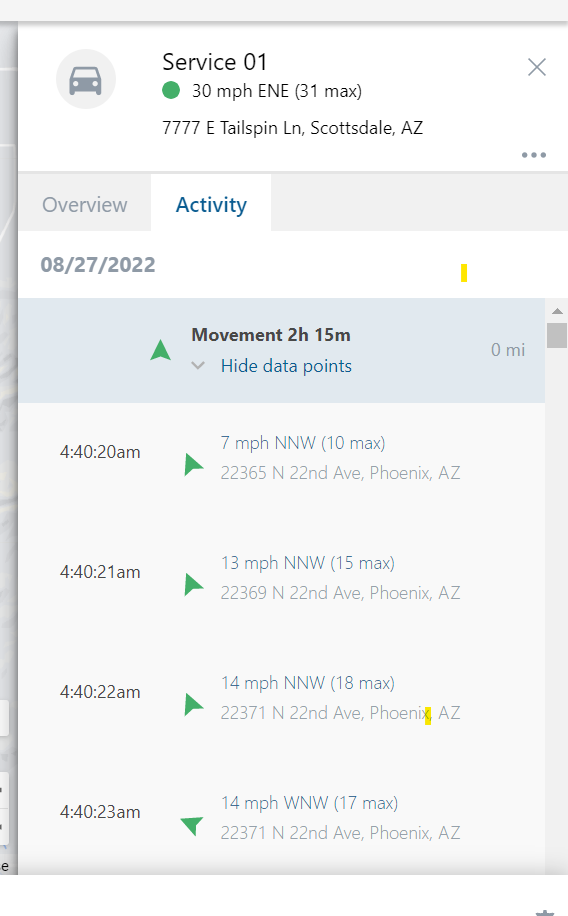
How to view vehicle activity:

- From the Vehicle Card, click the Ellipsis button (
 ).
A drop-down menu appears.
- Click View History. The History map page appears.
- From the Timeline section, select a date and time (start/end time) using the Date Picker (calendar icon) and click View History.
- Click the "Activity" tab in the Vehicle Card. The Activity Feed for the selected date and vehicle is shown. You may need to scroll down to view all activity.
- Click Show Data Points from a movement point to view individual data points (vehicle heading, speed, max speed, and location).
- Optional: If you would like to see overview details for an activity item, click the activity item then click the Overview tab to see vehicle, reported on date/time stamp, direction, speed, driver (if assigned), odometer, ignition status, and device serial number.
Click on an activity point to see the vehicle's location on the History map corresponding to the selected activity point.
You can use the Trip History feature to view animated vehicle activity. Please see Using Trip History for additional information.
[post_title] => Viewing Vehicle Activity [post_excerpt] => This article provides instructions on how to use the Activity Feed feature. [post_status] => publish [comment_status] => closed [ping_status] => closed [post_password] => [post_name] => viewing-vehicle-activity [to_ping] => [pinged] => [post_modified] => 2023-01-03 09:09:22 [post_modified_gmt] => 2023-01-03 16:09:22 [post_content_filtered] => [post_parent] => 25076 [guid] => https://help.gpsinsight.com/?post_type=documentation&p=25282 [menu_order] => 1 [post_type] => documentation [post_mime_type] => [comment_count] => 0 [filter] => raw ) ) [post_count] => 4 [current_post] => -1 [before_loop] => 1 [in_the_loop] => [post] => WP_Post Object ( [ID] => 25076 [post_author] => 12 [post_date] => 2022-06-20 13:46:30 [post_date_gmt] => 2022-06-20 20:46:30 [post_content] => All of your registered vehicles and/or assets are visible on the map by color code and shape (if assigned).
Map Legend
Click on the Legend button to view the definition of the colors and shapes on the map.
Color Coding
Vehicles are color-coded according to their current status (i.e., moving, idling, stopped).
For a vehicle to be assigned an "out-of-range" status, the vehicle must meet two technical requirements: 1) Last known ignition Event is ON, AND 2) Last device ping received 60 minutes ago or more.
Shape Coding
You can also identify your vehicles on the map easily by assigning shapes to your vehicles. Shapes are customizable. Instead of using a default marker (), you can assign different icon shapes to different vehicles to get an immediate visual indicator for the vehicle type, category, etc.

Vehicle List
In the Vehicle List and drop-downs, vehicles are listed alphabetically (by vehicle label) or chronologically (if vehicle label is numeric). When you click on a vehicle from a list or from a map, the Vehicle Card appears, which shows you the duration of vehicle status, last reported time of ignition status, address and geocode of last reported location, and more.
[post_title] => About Vehicles on the Map
[post_excerpt] => Use this article to learn about how vehicles display on the Map.
[post_status] => publish
[comment_status] => closed
[ping_status] => closed
[post_password] =>
[post_name] => about-vehicles-on-the-map
[to_ping] =>
[pinged] =>
[post_modified] => 2024-06-14 11:59:58
[post_modified_gmt] => 2024-06-14 18:59:58
[post_content_filtered] =>
[post_parent] => 0
[guid] => https://help.gpsinsight.com/?post_type=documentation&p=25076
[menu_order] => 0
[post_type] => documentation
[post_mime_type] =>
[comment_count] => 0
[filter] => raw
)
[comment_count] => 0
[current_comment] => -1
[found_posts] => 4
[max_num_pages] => 1
[max_num_comment_pages] => 0
[is_single] =>
[is_preview] =>
[is_page] =>
[is_archive] => 1
[is_date] =>
[is_year] =>
[is_month] =>
[is_day] =>
[is_time] =>
[is_author] =>
[is_category] =>
[is_tag] =>
[is_tax] => 1
[is_search] =>
[is_feed] =>
[is_comment_feed] =>
[is_trackback] =>
[is_home] =>
[is_privacy_policy] =>
[is_404] =>
[is_embed] =>
[is_paged] =>
[is_admin] =>
[is_attachment] =>
[is_singular] =>
[is_robots] =>
[is_favicon] =>
[is_sitemap] =>
[is_posts_page] =>
[is_post_type_archive] => 1
[query_vars_hash:WP_Query:private] => 527180f1408b828e87cb95cdaf75d219
[query_vars_changed:WP_Query:private] => 1
[thumbnails_cached] =>
[allow_query_attachment_by_filename:protected] =>
[stopwords:WP_Query:private] =>
[compat_fields:WP_Query:private] => Array
(
[0] => query_vars_hash
[1] => query_vars_changed
)
[compat_methods:WP_Query:private] => Array
(
[0] => init_query_flags
[1] => parse_tax_query
)
[query_cache_key:WP_Query:private] => wp_query:7d7b8ff51c9a8cf08908ea68262c036b
)
[children] => Array
(
)
[term] => WP_Term Object
(
[term_id] => 17
[name] => Vehicles
[slug] => vehicles
[term_group] => 0
[term_taxonomy_id] => 17
[taxonomy] => feature
[description] => Vehicle features allow you to manage all vehicle activity. You can register new vehicles in your account, edit vehicle information, view vehicle locations on the map, view current status, view historical activity, find the closest vehicles, get directions, center the map around a vehicle, follow a vehicle on the map, send an SMS message, create a landmark from a vehicle's location, and more. You can also create and share vehicle groups and manage access permissions.
[parent] => 0
[count] => 43
[filter] => raw
[term_order] => 8
[cat_ID] => 17
[category_count] => 43
[category_description] => Vehicle features allow you to manage all vehicle activity. You can register new vehicles in your account, edit vehicle information, view vehicle locations on the map, view current status, view historical activity, find the closest vehicles, get directions, center the map around a vehicle, follow a vehicle on the map, send an SMS message, create a landmark from a vehicle's location, and more. You can also create and share vehicle groups and manage access permissions.
[cat_name] => Vehicles
[category_nicename] => vehicles
[category_parent] => 0
)
[post_count] => 5
)
)
[video] => Array
(
[17] => Array
(
[posts] => WP_Query Object
(
[query] => Array
(
[orderby] => title
[order] => ASC
[post_type] => video
[posts_per_page] => 999
[tax_query] => Array
(
[0] => Array
(
[taxonomy] => feature
[field] => term_id
[terms] => 17
[include_children] => 1
)
[1] => Array
(
[taxonomy] => solution
[field] => term_id
[terms] => 12
)
[relation] => AND
[2] => Array
(
[taxonomy] => product
[field] => term_id
[terms] => 585
)
)
[meta_query] => Array
(
[0] => Array
(
[key] => _exclude_whitelabel_full
[compare] => NOT EXISTS
)
)
)
[query_vars] => Array
(
[orderby] => title
[order] => ASC
[post_type] => video
[posts_per_page] => 999
[tax_query] => Array
(
[0] => Array
(
[taxonomy] => feature
[field] => term_id
[terms] => 17
[include_children] => 1
)
[1] => Array
(
[taxonomy] => solution
[field] => term_id
[terms] => 12
)
[relation] => AND
[2] => Array
(
[taxonomy] => product
[field] => term_id
[terms] => 585
)
)
[meta_query] => Array
(
[0] => Array
(
[key] => _exclude_whitelabel_full
[compare] => NOT EXISTS
)
)
[error] =>
[m] =>
[p] => 0
[post_parent] =>
[subpost] =>
[subpost_id] =>
[attachment] =>
[attachment_id] => 0
[name] =>
[pagename] =>
[page_id] => 0
[second] =>
[minute] =>
[hour] =>
[day] => 0
[monthnum] => 0
[year] => 0
[w] => 0
[category_name] =>
[tag] =>
[cat] =>
[tag_id] =>
[author] =>
[author_name] =>
[feed] =>
[tb] =>
[paged] => 0
[meta_key] =>
[meta_value] =>
[preview] =>
[s] =>
[sentence] =>
[title] =>
[fields] => all
[menu_order] =>
[embed] =>
[category__in] => Array
(
)
[category__not_in] => Array
(
)
[category__and] => Array
(
)
[post__in] => Array
(
)
[post__not_in] => Array
(
[0] => 14750
[1] => 23436
[2] => 27424
[3] => 27817
[4] => 30225
[5] => 31065
[6] => 31175
[7] => 32017
[8] => 32296
[9] => 32565
[10] => 32605
[11] => 32636
[12] => 33723
[13] => 33737
[14] => 33761
[15] => 34344
[16] => 34459
[17] => 34553
[18] => 34586
[19] => 34590
[20] => 34651
[21] => 34657
[22] => 34659
)
[post_name__in] => Array
(
)
[tag__in] => Array
(
)
[tag__not_in] => Array
(
)
[tag__and] => Array
(
)
[tag_slug__in] => Array
(
)
[tag_slug__and] => Array
(
)
[post_parent__in] => Array
(
)
[post_parent__not_in] => Array
(
)
[author__in] => Array
(
)
[author__not_in] => Array
(
)
[search_columns] => Array
(
)
[ignore_sticky_posts] =>
[suppress_filters] =>
[cache_results] => 1
[update_post_term_cache] => 1
[update_menu_item_cache] =>
[lazy_load_term_meta] => 1
[update_post_meta_cache] => 1
[nopaging] =>
[comments_per_page] => 50
[no_found_rows] =>
[taxonomy] => feature
[term_id] => 17
)
[tax_query] => WP_Tax_Query Object
(
[queries] => Array
(
[0] => Array
(
[taxonomy] => feature
[terms] => Array
(
[0] => 17
)
[field] => term_id
[operator] => IN
[include_children] => 1
)
[1] => Array
(
[taxonomy] => solution
[terms] => Array
(
[0] => 12
)
[field] => term_id
[operator] => IN
[include_children] => 1
)
[relation] => AND
[2] => Array
(
[taxonomy] => product
[terms] => Array
(
[0] => 585
)
[field] => term_id
[operator] => IN
[include_children] => 1
)
)
[relation] => AND
[table_aliases:protected] => Array
(
[0] => wp_term_relationships
[1] => tt1
[2] => tt2
)
[queried_terms] => Array
(
[feature] => Array
(
[terms] => Array
(
[0] => 17
)
[field] => term_id
)
[solution] => Array
(
[terms] => Array
(
[0] => 12
)
[field] => term_id
)
[product] => Array
(
[terms] => Array
(
[0] => 585
)
[field] => term_id
)
)
[primary_table] => wp_posts
[primary_id_column] => ID
)
[meta_query] => WP_Meta_Query Object
(
[queries] => Array
(
[0] => Array
(
[key] => _exclude_whitelabel_full
[compare] => NOT EXISTS
)
[relation] => OR
)
[relation] => AND
[meta_table] => wp_postmeta
[meta_id_column] => post_id
[primary_table] => wp_posts
[primary_id_column] => ID
[table_aliases:protected] => Array
(
[0] => wp_postmeta
)
[clauses:protected] => Array
(
[wp_postmeta] => Array
(
[key] => _exclude_whitelabel_full
[compare] => NOT EXISTS
[compare_key] => =
[alias] => wp_postmeta
[cast] => CHAR
)
)
[has_or_relation:protected] =>
)
[date_query] =>
[request] => SELECT SQL_CALC_FOUND_ROWS wp_posts.ID
FROM wp_posts LEFT JOIN wp_term_relationships ON (wp_posts.ID = wp_term_relationships.object_id) LEFT JOIN wp_term_relationships AS tt1 ON (wp_posts.ID = tt1.object_id) LEFT JOIN wp_term_relationships AS tt2 ON (wp_posts.ID = tt2.object_id) LEFT JOIN wp_postmeta ON ( wp_posts.ID = wp_postmeta.post_id AND wp_postmeta.meta_key = '_exclude_whitelabel_full' )
WHERE 1=1 AND wp_posts.ID NOT IN (14750,23436,27424,27817,30225,31065,31175,32017,32296,32565,32605,32636,33723,33737,33761,34344,34459,34553,34586,34590,34651,34657,34659) AND (
wp_term_relationships.term_taxonomy_id IN (17)
AND
tt1.term_taxonomy_id IN (12)
AND
tt2.term_taxonomy_id IN (585)
) AND (
wp_postmeta.post_id IS NULL
) AND ((wp_posts.post_type = 'video' AND (wp_posts.post_status = 'publish' OR wp_posts.post_status = 'graded' OR wp_posts.post_status = 'not_graded')))
GROUP BY wp_posts.ID
ORDER BY wp_posts.post_title ASC
LIMIT 0, 999
[posts] => Array
(
[0] => WP_Post Object
(
[ID] => 31576
[post_author] => 146
[post_date] => 2024-10-11 11:04:42
[post_date_gmt] => 2024-10-11 18:04:42
[post_content] => With this video, you'll learn how to configure custom device thresholds in the Portal.
[post_title] => Configuring Device Thresholds
[post_excerpt] =>
[post_status] => publish
[comment_status] => closed
[ping_status] => closed
[post_password] =>
[post_name] => configuring-device-thresholds
[to_ping] =>
[pinged] =>
[post_modified] => 2024-10-11 12:36:33
[post_modified_gmt] => 2024-10-11 19:36:33
[post_content_filtered] =>
[post_parent] => 0
[guid] => https://help.gpsinsight.com/?post_type=video&p=31576
[menu_order] => 0
[post_type] => video
[post_mime_type] =>
[comment_count] => 0
[filter] => raw
)
[1] => WP_Post Object
(
[ID] => 24221
[post_author] => 12
[post_date] => 2021-12-16 11:52:16
[post_date_gmt] => 2021-12-16 18:52:16
[post_content] => The Idle Time Detail Report lists the total time each vehicle in your organization spends idling and the approximate amount of fuel used while idling.
[post_title] => Idle Time Detail Report
[post_excerpt] =>
[post_status] => publish
[comment_status] => closed
[ping_status] => closed
[post_password] =>
[post_name] => idle-time-detail-report
[to_ping] =>
[pinged] =>
[post_modified] => 2021-12-21 14:57:53
[post_modified_gmt] => 2021-12-21 21:57:53
[post_content_filtered] =>
[post_parent] => 0
[guid] => https://help.gpsinsight.com/?post_type=video&p=24221
[menu_order] => 0
[post_type] => video
[post_mime_type] =>
[comment_count] => 0
[filter] => raw
)
)
[post_count] => 2
[current_post] => -1
[before_loop] => 1
[in_the_loop] =>
[post] => WP_Post Object
(
[ID] => 31576
[post_author] => 146
[post_date] => 2024-10-11 11:04:42
[post_date_gmt] => 2024-10-11 18:04:42
[post_content] => With this video, you'll learn how to configure custom device thresholds in the Portal.
[post_title] => Configuring Device Thresholds
[post_excerpt] =>
[post_status] => publish
[comment_status] => closed
[ping_status] => closed
[post_password] =>
[post_name] => configuring-device-thresholds
[to_ping] =>
[pinged] =>
[post_modified] => 2024-10-11 12:36:33
[post_modified_gmt] => 2024-10-11 19:36:33
[post_content_filtered] =>
[post_parent] => 0
[guid] => https://help.gpsinsight.com/?post_type=video&p=31576
[menu_order] => 0
[post_type] => video
[post_mime_type] =>
[comment_count] => 0
[filter] => raw
)
[comment_count] => 0
[current_comment] => -1
[found_posts] => 2
[max_num_pages] => 1
[max_num_comment_pages] => 0
[is_single] =>
[is_preview] =>
[is_page] =>
[is_archive] => 1
[is_date] =>
[is_year] =>
[is_month] =>
[is_day] =>
[is_time] =>
[is_author] =>
[is_category] =>
[is_tag] =>
[is_tax] => 1
[is_search] =>
[is_feed] =>
[is_comment_feed] =>
[is_trackback] =>
[is_home] =>
[is_privacy_policy] =>
[is_404] =>
[is_embed] =>
[is_paged] =>
[is_admin] =>
[is_attachment] =>
[is_singular] =>
[is_robots] =>
[is_favicon] =>
[is_sitemap] =>
[is_posts_page] =>
[is_post_type_archive] => 1
[query_vars_hash:WP_Query:private] => 9ad3265b02f8dacabc24ff1e23e414f1
[query_vars_changed:WP_Query:private] => 1
[thumbnails_cached] =>
[allow_query_attachment_by_filename:protected] =>
[stopwords:WP_Query:private] =>
[compat_fields:WP_Query:private] => Array
(
[0] => query_vars_hash
[1] => query_vars_changed
)
[compat_methods:WP_Query:private] => Array
(
[0] => init_query_flags
[1] => parse_tax_query
)
[query_cache_key:WP_Query:private] => wp_query:f05a14678f0d597c62bfce8061441979
)
[children] => Array
(
)
[term] => WP_Term Object
(
[term_id] => 17
[name] => Vehicles
[slug] => vehicles
[term_group] => 0
[term_taxonomy_id] => 17
[taxonomy] => feature
[description] => Vehicle features allow you to manage all vehicle activity. You can register new vehicles in your account, edit vehicle information, view vehicle locations on the map, view current status, view historical activity, find the closest vehicles, get directions, center the map around a vehicle, follow a vehicle on the map, send an SMS message, create a landmark from a vehicle's location, and more. You can also create and share vehicle groups and manage access permissions.
[parent] => 0
[count] => 43
[filter] => raw
[term_order] => 8
[cat_ID] => 17
[category_count] => 43
[category_description] => Vehicle features allow you to manage all vehicle activity. You can register new vehicles in your account, edit vehicle information, view vehicle locations on the map, view current status, view historical activity, find the closest vehicles, get directions, center the map around a vehicle, follow a vehicle on the map, send an SMS message, create a landmark from a vehicle's location, and more. You can also create and share vehicle groups and manage access permissions.
[cat_name] => Vehicles
[category_nicename] => vehicles
[category_parent] => 0
)
[post_count] => 3
)
)
[bestpractice] => Array
(
)
[deepdive] => Array
(
[17] => Array
(
[posts] => WP_Query Object
(
[query] => Array
(
[orderby] => title
[order] => ASC
[post_type] => deepdive
[posts_per_page] => 999
[tax_query] => Array
(
[0] => Array
(
[taxonomy] => feature
[field] => term_id
[terms] => 17
[include_children] => 1
)
[1] => Array
(
[taxonomy] => solution
[field] => term_id
[terms] => 12
)
[relation] => AND
[2] => Array
(
[taxonomy] => product
[field] => term_id
[terms] => 585
)
)
[meta_query] => Array
(
[0] => Array
(
[key] => _exclude_whitelabel_full
[compare] => NOT EXISTS
)
)
)
[query_vars] => Array
(
[orderby] => title
[order] => ASC
[post_type] => deepdive
[posts_per_page] => 999
[tax_query] => Array
(
[0] => Array
(
[taxonomy] => feature
[field] => term_id
[terms] => 17
[include_children] => 1
)
[1] => Array
(
[taxonomy] => solution
[field] => term_id
[terms] => 12
)
[relation] => AND
[2] => Array
(
[taxonomy] => product
[field] => term_id
[terms] => 585
)
)
[meta_query] => Array
(
[0] => Array
(
[key] => _exclude_whitelabel_full
[compare] => NOT EXISTS
)
)
[error] =>
[m] =>
[p] => 0
[post_parent] =>
[subpost] =>
[subpost_id] =>
[attachment] =>
[attachment_id] => 0
[name] =>
[pagename] =>
[page_id] => 0
[second] =>
[minute] =>
[hour] =>
[day] => 0
[monthnum] => 0
[year] => 0
[w] => 0
[category_name] =>
[tag] =>
[cat] =>
[tag_id] =>
[author] =>
[author_name] =>
[feed] =>
[tb] =>
[paged] => 0
[meta_key] =>
[meta_value] =>
[preview] =>
[s] =>
[sentence] =>
[title] =>
[fields] => all
[menu_order] =>
[embed] =>
[category__in] => Array
(
)
[category__not_in] => Array
(
)
[category__and] => Array
(
)
[post__in] => Array
(
)
[post__not_in] => Array
(
[0] => 14750
[1] => 23436
[2] => 27424
[3] => 27817
[4] => 30225
[5] => 31065
[6] => 31175
[7] => 32017
[8] => 32296
[9] => 32565
[10] => 32605
[11] => 32636
[12] => 33723
[13] => 33737
[14] => 33761
[15] => 34344
[16] => 34459
[17] => 34553
[18] => 34586
[19] => 34590
[20] => 34651
[21] => 34657
[22] => 34659
)
[post_name__in] => Array
(
)
[tag__in] => Array
(
)
[tag__not_in] => Array
(
)
[tag__and] => Array
(
)
[tag_slug__in] => Array
(
)
[tag_slug__and] => Array
(
)
[post_parent__in] => Array
(
)
[post_parent__not_in] => Array
(
)
[author__in] => Array
(
)
[author__not_in] => Array
(
)
[search_columns] => Array
(
)
[ignore_sticky_posts] =>
[suppress_filters] =>
[cache_results] => 1
[update_post_term_cache] => 1
[update_menu_item_cache] =>
[lazy_load_term_meta] => 1
[update_post_meta_cache] => 1
[nopaging] =>
[comments_per_page] => 50
[no_found_rows] =>
[taxonomy] => feature
[term_id] => 17
)
[tax_query] => WP_Tax_Query Object
(
[queries] => Array
(
[0] => Array
(
[taxonomy] => feature
[terms] => Array
(
[0] => 17
)
[field] => term_id
[operator] => IN
[include_children] => 1
)
[1] => Array
(
[taxonomy] => solution
[terms] => Array
(
[0] => 12
)
[field] => term_id
[operator] => IN
[include_children] => 1
)
[relation] => AND
[2] => Array
(
[taxonomy] => product
[terms] => Array
(
[0] => 585
)
[field] => term_id
[operator] => IN
[include_children] => 1
)
)
[relation] => AND
[table_aliases:protected] => Array
(
[0] => wp_term_relationships
[1] => tt1
[2] => tt2
)
[queried_terms] => Array
(
[feature] => Array
(
[terms] => Array
(
[0] => 17
)
[field] => term_id
)
[solution] => Array
(
[terms] => Array
(
[0] => 12
)
[field] => term_id
)
[product] => Array
(
[terms] => Array
(
[0] => 585
)
[field] => term_id
)
)
[primary_table] => wp_posts
[primary_id_column] => ID
)
[meta_query] => WP_Meta_Query Object
(
[queries] => Array
(
[0] => Array
(
[key] => _exclude_whitelabel_full
[compare] => NOT EXISTS
)
[relation] => OR
)
[relation] => AND
[meta_table] => wp_postmeta
[meta_id_column] => post_id
[primary_table] => wp_posts
[primary_id_column] => ID
[table_aliases:protected] => Array
(
[0] => wp_postmeta
)
[clauses:protected] => Array
(
[wp_postmeta] => Array
(
[key] => _exclude_whitelabel_full
[compare] => NOT EXISTS
[compare_key] => =
[alias] => wp_postmeta
[cast] => CHAR
)
)
[has_or_relation:protected] =>
)
[date_query] =>
[request] => SELECT SQL_CALC_FOUND_ROWS wp_posts.ID
FROM wp_posts LEFT JOIN wp_term_relationships ON (wp_posts.ID = wp_term_relationships.object_id) LEFT JOIN wp_term_relationships AS tt1 ON (wp_posts.ID = tt1.object_id) LEFT JOIN wp_term_relationships AS tt2 ON (wp_posts.ID = tt2.object_id) LEFT JOIN wp_postmeta ON ( wp_posts.ID = wp_postmeta.post_id AND wp_postmeta.meta_key = '_exclude_whitelabel_full' )
WHERE 1=1 AND wp_posts.ID NOT IN (14750,23436,27424,27817,30225,31065,31175,32017,32296,32565,32605,32636,33723,33737,33761,34344,34459,34553,34586,34590,34651,34657,34659) AND (
wp_term_relationships.term_taxonomy_id IN (17)
AND
tt1.term_taxonomy_id IN (12)
AND
tt2.term_taxonomy_id IN (585)
) AND (
wp_postmeta.post_id IS NULL
) AND ((wp_posts.post_type = 'deepdive' AND (wp_posts.post_status = 'publish' OR wp_posts.post_status = 'graded' OR wp_posts.post_status = 'not_graded')))
GROUP BY wp_posts.ID
ORDER BY wp_posts.post_title ASC
LIMIT 0, 999
[posts] => Array
(
[0] => WP_Post Object
(
[ID] => 20726
[post_author] => 12
[post_date] => 2020-08-17 13:20:15
[post_date_gmt] => 2020-08-17 20:20:15
[post_content] => Are you curious about the various diagnostic data you’re seeing reported from your vehicle? This article is meant to help give more insight and understanding regarding the multiple diagnostic values your device may be reporting.
Device Diagnostics
Please see the below table for the diagnostic type and a corresponding description. This data doesn’t necessarily relate to your vehicle’s engine diagnostics, but rather to the device’s interpreted/accumulated data that can be influenced by reading the diagnostic port. [et class="table-zebra" colwidth="25%|75%"] Type,Description Max Speed,The maximum GPS speed reported from the device within its predefined update interval Instantaneous Speed,The instantaneous speed reported from the device at the instance the device recorded the event Trip Odometer,An interpreted value based on Vehicle Speed over Time; units = meters External Battery Voltage,Actively monitored and reported through the A/D wiring/connection of the installation; units = ADC Temperature,The instantaneous temperature reported from a device equipped with a temperature sensor; units = Celsius Instantaneous Fuel Economy,An interpreted value based on ECU Vehicle Speed and ECU Fuel Rate; units = (Tenths of Km)/Liter [/et]Vehicle Diagnostics
Please see the below table for the vehicle diagnostic type and a corresponding description. This data is directly related to the information voluntarily reported from the vehicle’s ECU or otherwise polled from the vehicle on a predefined schedule.Vehicle diagnostics reported from the ECU varies from vehicle to vehicle, based on vehicle make/model/year.
[et class="table-zebra" colwidth="25%|75%"] Type,Description Engine Speed,The instantaneous RPM value reported from the vehicle’s ECU at the instance the device recorded the event; units = 0.1 RPM Fuel Level Percentage,Percentage of fuel level remaining; units = 0.01% Fuel Level Remaining,ECU calculation on exact fuel level remaining; units = milliliters Engine Coolant Temp,ECU calculation on exact coolant temperature; units = 1/16 degree Celcius Fuel Rate,ECU calculation on the rate of fuel consumed; units = milliliters/hour Odometer,ECU calculation on the total distance traveled; units = meters Vehicle Speed,ECU calculation on the instantaneous speed reported from the vehicle’s ECU at the instance the device recorded the event; units = centimeters/sec Max Acceleration,The maximum ECU calculated Vehicle Speed increase over a limited and shortened duration Max Deceleration,The maximum ECU calculated Vehicle Speed decrease over a limited and shortened duration Diagnostic Max Speed,The maximum ECU value of Vehicle Speed recorded within a predefined interval Max Vehicle RPMs,The maximum ECU value of RPM recorded within a predefined interval Engine Hours,ECU calculation on the total engine run time; units = 0.05 hours Engine State,The instantaneous engine state value reported from the vehicle’s ECU at the instance the device recorded the event; units = Engine Off\, Engine On DTC Count,The instantaneous count of diagnostic trouble codes reported from the ECU at the instance the device recorded the event; units = number of current DTC codes Engine Oil Temperature,ECU calculation on exact engine oil temperature; units = 1/16 degree Celcius Fuel Type,The instantaneous engine state value reported from the vehicle’s ECU at the instance the device recorded the event; units = Not Available\, Gasoline\, Methanol\, Ethanol\, Diesel\, LPG\, CNG\, Propane\, Electric Hybrid/EV: State of Charge,The percent remaining level of charge; units = 0.10% Hybrid/EV: Current Voltage,The current voltage read from the ECU on an electric or hybrid vehicle; units = Volts/Amps Seatbelt Fastened,The instantaneous value reported from the vehicle’s ECU at the instance the device recorded the event; units = Yes\, No MIL Status,Malfunction Indicator Light (e.g. engine light)\, the instantaneous value reported from the vehicle’s ECU at the instance the device recorded the event; units = On/Off TPMS Light Status,Tire Pressure Monitor System\, the instantaneous value reported from the vehicle’s ECU at the instance the device recorded the event; units = On/Off Hybrid/EV: Charging State,The instantaneous value reported from the vehicle’s ECU at the instance the device recorded the event; units = Sustaining (charging)\, Depletion (not charging) Tire Pressure - Left Front,The instantaneous value reported from the vehicle’s ECU at the instance the device recorded the event; units = kPa Tire Pressure - Left Rear,The instantaneous value reported from the vehicle’s ECU at the instance the device recorded the event; units = kPa Tire Pressure - Right Front,The instantaneous value reported from the vehicle’s ECU at the instance the device recorded the event; units = kPa Tire Pressure - Right Rear,The instantaneous value reported from the vehicle’s ECU at the instance the device recorded the event; units = kPa Turn Signal Status,The instantaneous value reported from the vehicle’s ECU at the instance the device recorded the event; units = Off\, Left\, Right\, Left & Right Transmission Gear,The instantaneous value reported from the vehicle’s ECU at the instance the device recorded the event; units = Park\, Reverse\, Neutral\, Drive [/et] *GPS = satellite interpreted data **Some unit values reported may be converted to larger values or Imperial measurements for easier interpretation [post_title] => How Do I Interpret Diagnostic Data [post_excerpt] => [post_status] => publish [comment_status] => closed [ping_status] => closed [post_password] => [post_name] => how-do-i-interpret-diagnostic-data [to_ping] => [pinged] => [post_modified] => 2023-05-02 12:40:50 [post_modified_gmt] => 2023-05-02 19:40:50 [post_content_filtered] => [post_parent] => 0 [guid] => https://help.gpsinsight.com/?post_type=deepdive&p=20726 [menu_order] => 0 [post_type] => deepdive [post_mime_type] => [comment_count] => 0 [filter] => raw ) [1] => WP_Post Object ( [ID] => 33048 [post_author] => 12 [post_date] => 2025-08-28 07:13:33 [post_date_gmt] => 2025-08-28 14:13:33 [post_content] => Odometer tracking once relied on varying inputs from different vehicles and devices, with processing methods that differed by device type and data quality. This often added complexity and sometimes led to inconsistent mileage data. The new universal odometer algorithm standardizes this process with a single, unified method for nearly all vehicles and devices. This streamlined approach simplifies data handling, delivers consistent results, and improves the accuracy of the mileage information you rely on.This new algorithm applies to all device types except Geotab, Numerex, Orbcomm, and GPSI Mobile. Those devices will continue to use their existing odometer handling. If you have any questions about your device type, please contact your Account Manager.
Let's dive right in to understand how this works.Understanding the Universal Odometer Algorithm
Our system supports three reliable inputs for collecting and reporting odometer data:- Diagnostic: Reported directly from the vehicle’s onboard computer
- Trip-based: Reported trip increments from the device
- GPS-based: Calculated from GPS location data
How Do I Access Odometer Information?
Please visit Vehicle Card - Odometer for step-by-step instructions.Frequently Asked Questions
What happens if my device/vehicle temporarily stops reporting diagnostic odometer? Will I be stuck with the fallback, trip-based odometer? Definitely not. The universal odometer algorithm is designed to always prioritize the preferred source: the diagnostic odometer. It continuously scans for a valid diagnostic reading and, once detected, seamlessly switches back to using that data. This ensures your mileage remains as accurate and consistent as the reading displayed on your vehicle’s dashboard. Can I select the Odometer data source for my vehicle? The Universal Odometer Algorithm implements an automatic selection of the most reliable data source for odometer and the source cannot be manually selected. This results in more consistent, accurate, and dependable mileage reporting. However, when an adjusted value does not appear accurate, a waypoint can be added to recalculate and update the odometer value.How Does This Help Me?
There are multiple benefits to the universal odometer algorithm when it comes to monitoring your fleet:- Improved data quality: Eliminates unnecessary resynchronizations with relative inputs (trip/GPS), preventing the small mileage drops seen in older methods.
- Consistency across devices: Applies a single intelligent method across all supported devices, regardless of input type.
- Hands-off accuracy: Automatically selects the most reliable input without any manual effort required.
- Dashboard alignment: If the mileage in GPS Insight ever drifts from your vehicle’s dashboard reading, you can manually realign it anytime by entering a waypoint in the user interface.
Device Diagnostics
Please see the below table for the diagnostic type and a corresponding description. This data doesn’t necessarily relate to your vehicle’s engine diagnostics, but rather to the device’s interpreted/accumulated data that can be influenced by reading the diagnostic port. [et class="table-zebra" colwidth="25%|75%"] Type,Description Max Speed,The maximum GPS speed reported from the device within its predefined update interval Instantaneous Speed,The instantaneous speed reported from the device at the instance the device recorded the event Trip Odometer,An interpreted value based on Vehicle Speed over Time; units = meters External Battery Voltage,Actively monitored and reported through the A/D wiring/connection of the installation; units = ADC Temperature,The instantaneous temperature reported from a device equipped with a temperature sensor; units = Celsius Instantaneous Fuel Economy,An interpreted value based on ECU Vehicle Speed and ECU Fuel Rate; units = (Tenths of Km)/Liter [/et]Vehicle Diagnostics
Please see the below table for the vehicle diagnostic type and a corresponding description. This data is directly related to the information voluntarily reported from the vehicle’s ECU or otherwise polled from the vehicle on a predefined schedule.Vehicle diagnostics reported from the ECU varies from vehicle to vehicle, based on vehicle make/model/year.
[et class="table-zebra" colwidth="25%|75%"] Type,Description Engine Speed,The instantaneous RPM value reported from the vehicle’s ECU at the instance the device recorded the event; units = 0.1 RPM Fuel Level Percentage,Percentage of fuel level remaining; units = 0.01% Fuel Level Remaining,ECU calculation on exact fuel level remaining; units = milliliters Engine Coolant Temp,ECU calculation on exact coolant temperature; units = 1/16 degree Celcius Fuel Rate,ECU calculation on the rate of fuel consumed; units = milliliters/hour Odometer,ECU calculation on the total distance traveled; units = meters Vehicle Speed,ECU calculation on the instantaneous speed reported from the vehicle’s ECU at the instance the device recorded the event; units = centimeters/sec Max Acceleration,The maximum ECU calculated Vehicle Speed increase over a limited and shortened duration Max Deceleration,The maximum ECU calculated Vehicle Speed decrease over a limited and shortened duration Diagnostic Max Speed,The maximum ECU value of Vehicle Speed recorded within a predefined interval Max Vehicle RPMs,The maximum ECU value of RPM recorded within a predefined interval Engine Hours,ECU calculation on the total engine run time; units = 0.05 hours Engine State,The instantaneous engine state value reported from the vehicle’s ECU at the instance the device recorded the event; units = Engine Off\, Engine On DTC Count,The instantaneous count of diagnostic trouble codes reported from the ECU at the instance the device recorded the event; units = number of current DTC codes Engine Oil Temperature,ECU calculation on exact engine oil temperature; units = 1/16 degree Celcius Fuel Type,The instantaneous engine state value reported from the vehicle’s ECU at the instance the device recorded the event; units = Not Available\, Gasoline\, Methanol\, Ethanol\, Diesel\, LPG\, CNG\, Propane\, Electric Hybrid/EV: State of Charge,The percent remaining level of charge; units = 0.10% Hybrid/EV: Current Voltage,The current voltage read from the ECU on an electric or hybrid vehicle; units = Volts/Amps Seatbelt Fastened,The instantaneous value reported from the vehicle’s ECU at the instance the device recorded the event; units = Yes\, No MIL Status,Malfunction Indicator Light (e.g. engine light)\, the instantaneous value reported from the vehicle’s ECU at the instance the device recorded the event; units = On/Off TPMS Light Status,Tire Pressure Monitor System\, the instantaneous value reported from the vehicle’s ECU at the instance the device recorded the event; units = On/Off Hybrid/EV: Charging State,The instantaneous value reported from the vehicle’s ECU at the instance the device recorded the event; units = Sustaining (charging)\, Depletion (not charging) Tire Pressure - Left Front,The instantaneous value reported from the vehicle’s ECU at the instance the device recorded the event; units = kPa Tire Pressure - Left Rear,The instantaneous value reported from the vehicle’s ECU at the instance the device recorded the event; units = kPa Tire Pressure - Right Front,The instantaneous value reported from the vehicle’s ECU at the instance the device recorded the event; units = kPa Tire Pressure - Right Rear,The instantaneous value reported from the vehicle’s ECU at the instance the device recorded the event; units = kPa Turn Signal Status,The instantaneous value reported from the vehicle’s ECU at the instance the device recorded the event; units = Off\, Left\, Right\, Left & Right Transmission Gear,The instantaneous value reported from the vehicle’s ECU at the instance the device recorded the event; units = Park\, Reverse\, Neutral\, Drive [/et] *GPS = satellite interpreted data **Some unit values reported may be converted to larger values or Imperial measurements for easier interpretation [post_title] => How Do I Interpret Diagnostic Data [post_excerpt] => [post_status] => publish [comment_status] => closed [ping_status] => closed [post_password] => [post_name] => how-do-i-interpret-diagnostic-data [to_ping] => [pinged] => [post_modified] => 2023-05-02 12:40:50 [post_modified_gmt] => 2023-05-02 19:40:50 [post_content_filtered] => [post_parent] => 0 [guid] => https://help.gpsinsight.com/?post_type=deepdive&p=20726 [menu_order] => 0 [post_type] => deepdive [post_mime_type] => [comment_count] => 0 [filter] => raw ) [comment_count] => 0 [current_comment] => -1 [found_posts] => 2 [max_num_pages] => 1 [max_num_comment_pages] => 0 [is_single] => [is_preview] => [is_page] => [is_archive] => 1 [is_date] => [is_year] => [is_month] => [is_day] => [is_time] => [is_author] => [is_category] => [is_tag] => [is_tax] => 1 [is_search] => [is_feed] => [is_comment_feed] => [is_trackback] => [is_home] => [is_privacy_policy] => [is_404] => [is_embed] => [is_paged] => [is_admin] => [is_attachment] => [is_singular] => [is_robots] => [is_favicon] => [is_sitemap] => [is_posts_page] => [is_post_type_archive] => 1 [query_vars_hash:WP_Query:private] => 137dd86c4db6fe9a43ff2d54c17148d2 [query_vars_changed:WP_Query:private] => 1 [thumbnails_cached] => [allow_query_attachment_by_filename:protected] => [stopwords:WP_Query:private] => [compat_fields:WP_Query:private] => Array ( [0] => query_vars_hash [1] => query_vars_changed ) [compat_methods:WP_Query:private] => Array ( [0] => init_query_flags [1] => parse_tax_query ) [query_cache_key:WP_Query:private] => wp_query:38b302818c8a5dcd4215524a683aedae ) [children] => Array ( ) [term] => WP_Term Object ( [term_id] => 17 [name] => Vehicles [slug] => vehicles [term_group] => 0 [term_taxonomy_id] => 17 [taxonomy] => feature [description] => Vehicle features allow you to manage all vehicle activity. You can register new vehicles in your account, edit vehicle information, view vehicle locations on the map, view current status, view historical activity, find the closest vehicles, get directions, center the map around a vehicle, follow a vehicle on the map, send an SMS message, create a landmark from a vehicle's location, and more. You can also create and share vehicle groups and manage access permissions. [parent] => 0 [count] => 43 [filter] => raw [term_order] => 8 [cat_ID] => 17 [category_count] => 43 [category_description] => Vehicle features allow you to manage all vehicle activity. You can register new vehicles in your account, edit vehicle information, view vehicle locations on the map, view current status, view historical activity, find the closest vehicles, get directions, center the map around a vehicle, follow a vehicle on the map, send an SMS message, create a landmark from a vehicle's location, and more. You can also create and share vehicle groups and manage access permissions. [cat_name] => Vehicles [category_nicename] => vehicles [category_parent] => 0 ) [post_count] => 2 ) ) ) ) [Advanced Admin] => Array ( [Enterprise] => Array ( [documentation] => Array ( [17] => Array ( [posts] => WP_Query Object ( [query] => Array ( [orderby] => title [order] => ASC [post_type] => documentation [posts_per_page] => 999 [tax_query] => Array ( [0] => Array ( [taxonomy] => feature [field] => term_id [terms] => 17 [include_children] => 1 ) [1] => Array ( [taxonomy] => solution [field] => term_id [terms] => 12 ) [relation] => AND [2] => Array ( [taxonomy] => product [field] => term_id [terms] => 511 ) ) [meta_query] => Array ( [0] => Array ( [key] => _exclude_whitelabel_full [compare] => NOT EXISTS ) ) ) [query_vars] => Array ( [orderby] => title [order] => ASC [post_type] => documentation [posts_per_page] => 999 [tax_query] => Array ( [0] => Array ( [taxonomy] => feature [field] => term_id [terms] => 17 [include_children] => 1 ) [1] => Array ( [taxonomy] => solution [field] => term_id [terms] => 12 ) [relation] => AND [2] => Array ( [taxonomy] => product [field] => term_id [terms] => 511 ) ) [meta_query] => Array ( [0] => Array ( [key] => _exclude_whitelabel_full [compare] => NOT EXISTS ) ) [error] => [m] => [p] => 0 [post_parent] => [subpost] => [subpost_id] => [attachment] => [attachment_id] => 0 [name] => [pagename] => [page_id] => 0 [second] => [minute] => [hour] => [day] => 0 [monthnum] => 0 [year] => 0 [w] => 0 [category_name] => [tag] => [cat] => [tag_id] => [author] => [author_name] => [feed] => [tb] => [paged] => 0 [meta_key] => [meta_value] => [preview] => [s] => [sentence] => [title] => [fields] => all [menu_order] => [embed] => [category__in] => Array ( ) [category__not_in] => Array ( ) [category__and] => Array ( ) [post__in] => Array ( ) [post__not_in] => Array ( [0] => 14750 [1] => 23436 [2] => 27424 [3] => 27817 [4] => 30225 [5] => 31065 [6] => 31175 [7] => 32017 [8] => 32296 [9] => 32565 [10] => 32605 [11] => 32636 [12] => 33723 [13] => 33737 [14] => 33761 [15] => 34344 [16] => 34459 [17] => 34553 [18] => 34586 [19] => 34590 [20] => 34651 [21] => 34657 [22] => 34659 ) [post_name__in] => Array ( ) [tag__in] => Array ( ) [tag__not_in] => Array ( ) [tag__and] => Array ( ) [tag_slug__in] => Array ( ) [tag_slug__and] => Array ( ) [post_parent__in] => Array ( ) [post_parent__not_in] => Array ( ) [author__in] => Array ( ) [author__not_in] => Array ( ) [search_columns] => Array ( ) [ignore_sticky_posts] => [suppress_filters] => [cache_results] => 1 [update_post_term_cache] => 1 [update_menu_item_cache] => [lazy_load_term_meta] => 1 [update_post_meta_cache] => 1 [nopaging] => [comments_per_page] => 50 [no_found_rows] => [taxonomy] => feature [term_id] => 17 ) [tax_query] => WP_Tax_Query Object ( [queries] => Array ( [0] => Array ( [taxonomy] => feature [terms] => Array ( [0] => 17 ) [field] => term_id [operator] => IN [include_children] => 1 ) [1] => Array ( [taxonomy] => solution [terms] => Array ( [0] => 12 ) [field] => term_id [operator] => IN [include_children] => 1 ) [relation] => AND [2] => Array ( [taxonomy] => product [terms] => Array ( [0] => 511 ) [field] => term_id [operator] => IN [include_children] => 1 ) ) [relation] => AND [table_aliases:protected] => Array ( [0] => wp_term_relationships [1] => tt1 [2] => tt2 ) [queried_terms] => Array ( [feature] => Array ( [terms] => Array ( [0] => 17 ) [field] => term_id ) [solution] => Array ( [terms] => Array ( [0] => 12 ) [field] => term_id ) [product] => Array ( [terms] => Array ( [0] => 511 ) [field] => term_id ) ) [primary_table] => wp_posts [primary_id_column] => ID ) [meta_query] => WP_Meta_Query Object ( [queries] => Array ( [0] => Array ( [key] => _exclude_whitelabel_full [compare] => NOT EXISTS ) [relation] => OR ) [relation] => AND [meta_table] => wp_postmeta [meta_id_column] => post_id [primary_table] => wp_posts [primary_id_column] => ID [table_aliases:protected] => Array ( [0] => wp_postmeta ) [clauses:protected] => Array ( [wp_postmeta] => Array ( [key] => _exclude_whitelabel_full [compare] => NOT EXISTS [compare_key] => = [alias] => wp_postmeta [cast] => CHAR ) ) [has_or_relation:protected] => ) [date_query] => [request] => SELECT SQL_CALC_FOUND_ROWS wp_posts.ID FROM wp_posts LEFT JOIN wp_term_relationships ON (wp_posts.ID = wp_term_relationships.object_id) LEFT JOIN wp_term_relationships AS tt1 ON (wp_posts.ID = tt1.object_id) LEFT JOIN wp_term_relationships AS tt2 ON (wp_posts.ID = tt2.object_id) LEFT JOIN wp_postmeta ON ( wp_posts.ID = wp_postmeta.post_id AND wp_postmeta.meta_key = '_exclude_whitelabel_full' ) WHERE 1=1 AND wp_posts.ID NOT IN (14750,23436,27424,27817,30225,31065,31175,32017,32296,32565,32605,32636,33723,33737,33761,34344,34459,34553,34586,34590,34651,34657,34659) AND ( wp_term_relationships.term_taxonomy_id IN (17) AND tt1.term_taxonomy_id IN (12) AND tt2.term_taxonomy_id IN (511) ) AND ( wp_postmeta.post_id IS NULL ) AND ((wp_posts.post_type = 'documentation' AND (wp_posts.post_status = 'publish' OR wp_posts.post_status = 'graded' OR wp_posts.post_status = 'not_graded'))) GROUP BY wp_posts.ID ORDER BY wp_posts.post_title ASC LIMIT 0, 999 [posts] => Array ( [0] => WP_Post Object ( [ID] => 14553 [post_author] => 12 [post_date] => 2019-02-22 15:54:40 [post_date_gmt] => 2019-02-22 22:54:40 [post_content] => Need to see a newly installed device on the map? Car or truck not showing up? Check out the information below. [solution term="basic"]Click the Vehicles menu item to open the Vehicles tab. All of your vehicles and their color-coded statuses are listed on this tab. When you click on a vehicle from the list or when you click on a vehicle from the map, the Vehicle Card appears, which shows you the duration of vehicle status, last reported time of ignition status, address and geocode of last reported location, and current odometer reading (GPS odometer). Additional menu items are also available for the selected vehicle.

"Help! Why can't I see my vehicles on the map?" Ensure the map filters are turned off (i.e., show ALL VEHICLES).
[/solution][solution term="pro,enterprise"]All of your registered vehicles and/or assets are visible on maps and dashlets. Vehicles are color-coded according to their current status (i.e., moving, idling, stopped). [row] [column lg="3" md="12" sm="12" xs="12" ] [/column]
[column lg="9" md="12" sm="12" xs="12" ]
The thresholds shown in the legend are customizable. Click the User Preferences icon ( ) on the dashboard to set thresholds for Speed (mph), Idle Time (minutes) Stop Time (minutes), and Out of Range (minutes).
Icon shapes are also customizalbe. Instead of using a circle (
 ), you can assign different icon shapes to different vehicles to get an immediate visual indicator for the vehicle type.
 [/column]
[column lg="5" md="12" sm="12" xs="12" ]
The information on the Vehicle Card varies depending on the map type and the features available to your account.
[/column] [/row] The Vehicle Management page also allows you to register new devices, edit vehicle properties, assign vehicle groups, and more.In order to manage vehicles, you must have the Vehicle Admin permission enabled in the User Access List.
 [/solution]
[post_title] => About Vehicles
[post_excerpt] => Get to know the basics about how vehicle data is displayed in the map.
[post_status] => publish
[comment_status] => closed
[ping_status] => closed
[post_password] =>
[post_name] => about-vehicles
[to_ping] =>
[pinged] =>
[post_modified] => 2023-01-09 14:38:45
[post_modified_gmt] => 2023-01-09 21:38:45
[post_content_filtered] =>
[post_parent] => 0
[guid] => https://help.gpsinsight.com/?post_type=documentation&p=14553
[menu_order] => 0
[post_type] => documentation
[post_mime_type] =>
[comment_count] => 0
[filter] => raw
)
[1] => WP_Post Object
(
[ID] => 362
[post_author] => 12
[post_date] => 2015-12-15 20:47:44
[post_date_gmt] => 2015-12-15 20:47:44
[post_content] => [solution term="basic,standard"]
Adding a vehicle allows you to register a new vehicle in your account.
Register a New Vehicle
The device must be installed in the vehicle before you can see the vehicle in the portal.To add a vehicle:
- From the menu, click Vehicles.
- Click Add Vehicle.
- Enter the following information in the Vehicle Editor:
[et colwidth="20%|80%" class="table-zebra"]
Field Name,Description
Serial Number*,"The unique serial number of each GPS device that is associated with a specific vehicle. The device serial number(s) are pre-populated into your account at the time of installation. Each device can be registered to only one vehicle."
Odometer*,"The mileage on the vehicle at the time of installation."
Vehicle Label*,"The user-friendly identifier for the vehicle used in maps, reports, and so on. You can decide how to label each vehicle in your fleet."~~~~Please do not use special characters as this may affect reports/exported data.
VIN*,"The Vehicle Identification Number. Enter the VIN that is associated with the specific serial number of the installed device. Refer to your vehicle/device registration card (if available) to ensure you associate the right vehicle with the right device."
Icon*,"The default icon appears as a pin with a circle. Instead of using a circle, you can assign different shapes to different vehicles to get an immediate visual indicator for the vehicle type. For example, all trucks can be denoted with a truck-shaped icon, whereas vans can be denoted with a van-shaped icon. (Color is dynamically set based on vehicle status.)"
Year*,"The year of the vehicle model."
Make*,"The make of the vehicle (e.g., Ford). Automatically populated when VIN is entered."
Model*,"The model of the vehicle (e.g., F150). Automatically populated when VIN is entered."
Color,"The Vehicle Identification Number. Enter the VIN that is associated with the specific serial number of the installed device. Refer to your vehicle/device registration card (if available) to ensure you associate the right vehicle with the right device."
License Plate,"The license plate number of the vehicle."
License State,"The state in which the vehicle is licensed."
Country,"The country where the vehicle operates."
Fuel Type,"The type of fuel the vehicle consumes (used to calculate GHG emissions on reports)."
Fuel Capacity,"The fuel capacity in gallons (used to calculate the Idle GPH)."
Engine Size (L),"The size of the engine (used to calculate the Idle GPH)."
Idle GPH,"The number of gallons per hour the vehicle consumes when idling. Automatically calculates based on fuel capacity and engine size."
[/et]
- Click Save.
A copy of the registration information will be sent to the email address on file with your account.
Additional settings are available after initial save. See Editing a Vehicle.
[/solution][solution term="pro"]After your device has been installed in your vehicle, you must add the vehicle's information to the [whitelabel_name] portal (register). You can add vehicles by entering information into the portal one at a time or by importing data from a spreadsheet.You must have the Vehicle Admin permission in order to manage vehicles.
For most device models, you need to have the following to add the vehicle to the portal (required fields are indicated by an asterisk *): [et class="table-zebra" colwidth="20%|80%"] Field Name,Description Serial Number*,"The unique serial number of each GPS device that is associated with a specific vehicle. The device serial number(s) are pre-populated into your account at the time of installation. Each device can be registered to only one vehicle." Vehicle Label*,The user-friendly identifier for the vehicle used in maps\, reports\, and so on. You can decide how to label each vehicle in your fleet. Examples for vehicle labels may include using numbers for the vehicles (e.g.\, 22\, 23\, 24)\, both numbers and descriptions (e.g.\, 194 - Component Semi)\, the serial number of the device (e.g.\, 433208XXXX)\, or any abbreviated notation that is already in place at your company (e.g.\, TRK-91 for truck or C-42 for crane). You can also override the vehicle label from user preferences.~~~~Please do not use special characters as this may affect reports/exported data. VIN*,"The Vehicle Identification Number. Enter the VIN that is associated with the specific serial number of the installed device. Refer to your vehicle/device registration card (if available) to ensure you associate the right vehicle with the right device." Initial Odometer*,"The mileage on the vehicle at the time of installation. This value may not be required for registration of certain device models." Initial Run Time,"The number of running hours the engine has accumulated. Only relevant for assets, service reminders, or frequent idling." Country*,"The country where the vehicle operates." License State*,"The state in which the vehicle is licensed." License Plate,The license plate number of the vehicle." Color,"The color of the vehicle." Make,"The make of the vehicle. Automatically populated when VIN is entered." Model,"The model of the vehicle. Automatically populated when VIN is entered." Model Year,"The model year of the vehicle. Automatically populated when VIN is entered." Engine Size (L),"The size of the engine (used to calculate the Idle GPH on emissions reports). If unknown, leave blank." [/et]After initial registration, you can edit more vehicle details, such as Fuel Type, Fuel Capacity, and Visibility. You can also identify other descriptive information for vehicles known as attributes.
Enter Vehicle Information
Entering vehicle information manually is often used when you have a small number of vehicles (1-5) to register at a time.To add a vehicle:
- From the portal, hover over the Account menu, click Manage Vehicles, and click Open.
The Manage Vehicles and Groups page opens in a new browser tab.
- At the bottom of the Vehicle List grid, click Vehicle next to Register New.

- In the Register New Vehicle window, enter the required information for the vehicle/device. (Required fields are denoted with an asterisk *. See above for descriptions.)
- Click Register Vehicle.
The Save New Vehicle Registration pop-up window appears with a message stating the vehicle was registered successfully.

- You may use the hyperlinks to assign the newly registered vehicle to a vehicle group (Assign [vehicle label] to vehicle groups] or add the vehicle to hierarchies (Add [vehicle label] to hierarchies). Alternatively, you may skip these options by clicking skip.
If there are current recalls, the Current Vehicle Recalls pop-up appears providing a hyperlink (View Recalls/Edit Vehicle) to view the current recalls associated with the entered VIN. If there are no recalls, the pop-up reads "Changes Saved and you may exit by clicking the Exit button."
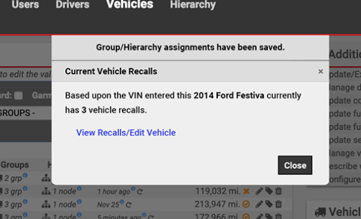
- Click Close to complete the registration process.
- Continue the registration process for each vehicle/device in your fleet.
- Go back to the browser tab that contains the dashboard.
- From the portal, hover over the Account menu, click Manage Vehicles, and then click Update/Export items using a spreadsheet.
- Download a CSV Example template next to the Register New Vehicles spreadsheet action.
- Within the spreadsheet, column names appear in Row 1 and an example record appears in Row 2. Replace Row 2+ with your own data.
- Save the spreadsheet with your changes.
- From the portal in the Spreadsheet Actions grid, click the Register New Vehicles option.
- From the Import Step 1: Upload CSV or Excel File grid, click Choose File.
- In the Open window, browse to the location where you saved the file for import, and double-click it.
- Click Upload Now.
- Click Preview the Import.
- Click Proceed with Import.
- From the menu at the top of the page, click Vehicles to view the new vehicles that were imported.
- From the portal, hover over the Account menu, click Manage Vehicles, and click Open.
- At the bottom of the Vehicle List grid, click Vehicle next to Register New.
- In the Register New Vehicle window, enter the required information for the vehicle/device. (Required fields are denoted with an asterisk *. See above for descriptions.)
- Click Register Vehicle.
- You may use the hyperlinks to assign the newly registered vehicle to a vehicle group (Assign [vehicle label] to vehicle groups] or add the vehicle to hierarchies (Add [vehicle label] to hierarchies). Alternatively, you may skip these options by clicking skip.
- Click Close to complete the registration process.
- Continue the registration process for each vehicle/device in your fleet.
- Go back to the browser tab that contains the dashboard.
- From the portal, hover over the Account menu, click Manage Vehicles, and then click Update/Export items using a spreadsheet.
- Download a CSV Example template next to the Register New Vehicles spreadsheet action.
- Within the spreadsheet, column names appear in Row 1 and an example record appears in Row 2. Replace Row 2+ with your own data.
- Save the spreadsheet with your changes.
- From the portal in the Spreadsheet Actions grid, click the Register New Vehicles option.
- From the Import Step 1: Upload CSV or Excel File grid, click Choose File.
- In the Open window, browse to the location where you saved the file for import, and double-click it.
- Click Upload Now.
- Click Preview the Import.
- Click Proceed with Import.
- From the menu at the top of the page, click Vehicles to view the new vehicles that were imported.
- Open the Edit Vehicle Details page for the vehicle you want to modify.
- In the Known Odometer Waypoints grid, enter the Odometer value and the date/time at which the reading was taken.
- Click Save Waypoint.
- From the portal, hover over the Account menu, click Manage Vehicles, and then click Update/Export items using a spreadsheet.
- Download one of the example spreadsheets next to the Update Odometer Waypoints option, and open the spreadsheet in Excel.
- In Row 2, enter the details for your first vehicle that correspond to each column (all required).
- Continue adding rows of data into the spreadsheet for each vehicle that you want to update.
- Save the file as CSV.
- From the portal, click the Update Odometer Waypoints option.
- From the Import Step 1: Upload CSV or Excel File grid, click Choose File.
- In the Open window, browse to the location where you saved the file for import, and double-click it.
- Click Upload Now.
- Click Preview the Import.
- Click Proceed with Import.
- From the menu at the top of the page, click Vehicles to view the Vehicles page, and then edit one of the vehicles that you updated to see the waypoints that were imported.
- Total GPS Device Hours - The run time for the device.
- Total Engine Hours - The run time for the vehicle as reported by diagnostics OR the run time for the device + an adjustment baseline.
- Open the Edit Vehicle Details page for the vehicle you want to modify.
- Enter the Run Time (lifetime) value in hours.
- Click Submit Change.
- From the top navigation bar in the Classic Portal, click Account. The drop-down menu expands.
- Click Manage Vehicles, then Open. The Manage Vehicles and Groups page appears.
- In the Vehicle List section, locate the vehicle for which you would like to set up inputs and click the corresponding Edit icon (
 ).
The Edit Vehicle Details page appears.
- In the Switch Inputs section next to Assign:, click Input. The Assign Input pop-up appears.
- Use the drop-down next to the applicable input number (1-4) to select the switch for the input(s).
- Click Assign.
- From the top navigation bar in the Classic Portal, click Account. The drop-down menu expands.
- Click Manage Vehicles, then Open. The Manage Vehicles and Groups page appears.
- In the Vehicle List section, locate the vehicle for which you would like to define a switch and click the corresponding Edit icon ().
The Edit Vehicle Details page appears.
- In the Switch Inputs section next to Define New:, click Switch. The Enter Switch Information pop-up appears.
- Enter the following information:
- Label
- On State
- Off State
- Click Create Input.
- You may then select the newly defined switch for the vehicle by following the steps listed under Selecting an Input.
- From the top navigation bar in the Classic Portal, click Account. The drop-down menu expands.
- Click Manage Vehicles, then Open. The Manage Vehicles and Groups page appears.
- In the Vehicle List section, locate the vehicle for which you would like to delete an input and click the corresponding Edit icon ().
The Edit Vehicle Details page appears.
- In the Switch Inputs section, click the delete icon (
 ) corresponding to the input you would like to delete.
- From the top navigation bar in the Classic Portal, click Account. The drop-down menu expands.
- Click Manage Vehicles, then Open. The Manage Vehicles and Groups page appears.
- In the Vehicle List section, next to Register New:, click Vehicle. The Register New Vehicle pop-up appears.
- Enter the relevant information and click the checkbox next to This vehicle uses inputs. The Switch Inputs menu appears providing options for Inputs 1-4.
- Select the applicable inputs using the drop-down menus or create a new switch by clicking New Switch.
- Click Register Vehicle when you have completed the registration form.
- From the map, Search Results tab, or Vehicles tab, click the vehicle that you want to edit.
- From the Vehicle Card, click Edit.
- The following additional fields are available to modify:
- Click Save.
- From the menu, click More.
- Click Transfer Device.
- In the Serial Number drop-down, choose the device you want to transfer.
- Enter the remaining fields for the new vehicle to which you are transferring the device.
- Click Save.
- From the menu, click More.
- Click Request Deactivation.
- Select the vehicle(s) to include in the request, and click Next.
- Enter a reason for the deactivation, and click Save.
- From the portal, hover over the Account menu, click Manage Vehicles, and click Open.
- Choose from the following filter options:
- Deactivated: Vehicles that have been marked as inactive.
- Fuel Card: Vehicles that have a fuel card assigned.
- Garmin: Vehicles that are equipped with a Garmin device.
- Polygon: Paste the KML from Google Earth to isolate vehicles with locations inside of a particular geographic region.
- Vehicle Group: Vehicles that belong to a particular vehicle group.
- Search: Vehicles that match a description. Use * as a wild card before or after a string of characters.
- Show All Select the check box to show all vehicle records on a single page (may take more time to load).
- Click Filter.
- From the portal, hover over the Account menu, click Manage Vehicles, and click Open.
- Locate the vehicle you want to modify, and click Edit (
 )
 OR
If you are making a change to the VIN or Vehicle Label, you can click on the vehicle label or VIN you would like to change from the Vehicle List then enter your change and click ok (You are not required to complete the following steps if you are changing the VIN or Vehicle Label this way).

- From the Edit Vehicle Details grid, add or edit information.
- When finished modifying vehicle details, click Submit Changes.
- Under the Actions column, click on the ellipses button corresponding to the recall component you would like to edit. A pop-up appears with the available edits (Dismiss and Mark as Repaired).
- Click on the applicable edit option. The edit is made and the component is automatically removed from the visible list of issued recalls.
- To see edited issued recalls, click the checkboxes next to filter and click filter. Edited recalls for the vehicle appear.
- From the Vehicle List, a red warning icon (
 ) appears in the Vehicle List window (next to the newly edited vehicle label) indicating that the tablet must be reprovisioned.
- If the icon is grey, the tablet has been successfully provisioned.
- From the Edit Vehicle Details page, a warning message (
 ) appears in the Edit Vehicle Details window (next to ELD) once you have clicked Submit Changes and saved the edited vehicle label.
- Need to correct vehicle info? Check out Transferring or Deactivating a Device.
- From the portal, hover over the Account menu, click Manage Vehicles, and click Update fuel and emissions info.
- For each vehicle in the list, click inside the cell you want to modify (Idle GPH and Capacity). Use the Idle GPH calculator to determine Idle GPH based on engine capacity.
- Idle Time - Idle time is measured with our tracking devices.
- co2 Rate - We allow each vehicle to specify fuel type, and we use these constants for tons of co2 generated per gallon of fuel consumed. This has been validated with sources including conservation.org.
- Diesel: 0.01015
- Propane: 0.00601
- CNG: 0.005914
- LNG: 0.005914
- Electric: 0
- N/A: 0
- Gasoline: 0.008809
- Idle GPH - Another constant that can be set individually for each vehicle, along with fuel type. Both are editable on the Manage Vehicles page. If the customer doesn't know the Idle GPH, it can be estimated by using the engine size. We usually get engine size from our VIN decoder, so engine size is usually put in an idle GPH estimated from that at the time of registration. The customer can override the estimate if they have the correct values. If there are no settings, the default value for our calculations is 0.4 idle gallons per hour.
- From the portal, hover over the Account menu, click Manage Vehicles, and click Manage visibility of diagnostic data.
- From the Diagnostic Access List grid, locate the vehicle(s) that you want to modify.
- Locate the diagnostic column that you want to show/hide, and select/clear the check box as needed.
- Have a DTC question? View About Alerts.
- Navigate to the new map.
- In the upper right-hand corner, click the Map Preferences icon.
- Under the Map Markers section, make sure the Show Input status is checked.
- If you click the vehicle label, the vehicle card will appear and show you the vehicle’s inputs and which inputs are engaged.
- Navigate to your map and click History.
- Select a vehicle to add to your map and time scrubber.
- Click Map Options in the right corner of your map view.
- Check the Inputs box.
- When you are looking at a historic trip for a vehicle, you will see an orange line on your map and in your scrubber to show an input was engaged.
- Drive Time Summary Report
- Switch Alerts Report
- Asset Inputs Alert
- Idle Time Alert: option to exclude PTO time from idle time
- Speeding Alert: option to only alert when input has a status
- Switch Alert
- From the portal, hover over the Account menu, click Manage Vehicles, and click Update fuel card vehicles and sites.
- In the Fuel Card Vehicles grid, clear the Show Matched check box to display all vehicle profiles that are not yet matched.
- For each unmatched vehicle in the grid, click Match to vehicle in your fleet (fuel card icon
 ).
- In the Match Fuel Card window, click the Vehicle drop-down, and choose the vehicle that corresponds to the selected Fuel Card Vehicle data.
- Click Match.
- From the portal, hover over the Account menu, click Manage Vehicles, and click Open.
- Locate the vehicle you want to modify, and click Delete (
 ).
- In the Deactivate Vehicle window, choose the Transfer option, and click Continue.
- Enter the information for the new vehicle, and click Register Vehicle.
- From the portal, hover over the Account menu, click Manage Vehicles, and click Open.
- Locate the vehicle you want to modify, and click Delete ().
- In the Deactivate Vehicle window, choose the Deactivate option, and click Continue.
- Choose a Reason for Deactivation.
- Choose whether you own or rent the device.
- Click Deactivate Vehicle.
- From the portal, hover over the Account menu, click Manage Vehicles, and click Open.
- From the Filter area, select the Deactivated check box, and click Filter.
- From the list of deactivated vehicles, locate the vehicle you want to modify, and click Include in reports for 4 hours (
 ).
- Need to correct vehicle info? Check out Editing a Vehicle.
- In the Vehicle List, navigate to the vehicle you would like to swap.
- Click on the trash icon.

- Select Swap then click Continue.

- Choose whether you want the vehicle profile copied or not. Choosing to copy the profile is generally not recommended if you want to reset all settings and associations for registration from scratch.
- Click on Swap Device.


- From the portal, hover over the Account menu, click Manage Vehicles, and click Update contact info for vehicle alerts.
- From the Vehicle List grid, locate a vehicle you want to modify. In the Phone /SMS or Email Address column for the vehicle, click the value (e.g., "not set").
- Enter a value in the editable cell, and click OK.
- In the Preference column for the vehicle, select the Email and/or the SMS check box(es) to indicate how the vehicle owner prefers to receive notifications.
- From the menu, click Vehicles.
- Click Groups.
- Click Create Group.
- Enter the group name, and click OK.
- Select the vehicles (i.e., group members) that belong to the group.
- Click Save.
- From the Search Results tab or Groups tab, click the group you want to view.
- Click Filter.
- When you're ready to show all vehicles again, click the ALL VEHICLES group from the Groups tab, and click Filter.
- Click Filter.
- From the Search Results tab or Groups tab, click the group you want to view.
- Click Share.
- From the Share Group pop-out window, click OK.
- When you're ready to disable the link, click group name.
- Click Unshare
- From the Unshare Group pop-out window, click OK.
- From the Search Results tab or Groups tab, click the group you want to view.
- Click Follow.
- When you're ready to stop following the group, click the X in the upper, right corner of the Following box.
- From the portal, hover over the Account menu, click Manage Vehicles, and click Open.
- At the bottom of the Vehicle Group List grid, click Vehicle Group next to Create New.
- In the Create New Vehicle Group window, enter a name for the group.
- Click Create Group.
- From the right pane (Vehicles NOT in the group), click to select the vehicle(s) to add to the new group. (CTRL+click or SHIFT+click to select more than one vehicle at a time.)
- Click Add.
- Click Save Changes.
- From the right pane (Users with NO ACCESS to the group), click to select the users to add to the new group. (CTRL+click or SHIFT+click to select more than one user at a time.)
- Click Add.
- Click Save Changes and then Close to return to the Manage Vehicles and Groups page.
- From the portal, hover over the Account menu, click Manage Vehicles, and click Open.
- From the Vehicle List grid, locate the vehicle you want to assign to one or more vehicle group, and click Assign to Vehicle Groups (group icon
 ).
- From the right pane (Groups vehicle is NOT in), CTRL+click to select the vehicle groups you want to assign to the current vehicle.
- Click Add. (Or select groups from the left pane and click Remove to un-assign the current vehicle from groups.)
- Click Save Changes to return to the Manage Vehicles and Groups page.
- Car or truck not showing up on the map? Check out About Vehicles.
- Having trouble with reports not returning relevant data? Check out Reviewing Reports.
- Scheduled report not working? View Managing User Access.
- From the portal, hover over the Account menu, click Manage Vehicles, and click Manage different icons for vehicle mapping.
- From the Icon Set List grid, locate the icon that you want to define.
- Click the label next to the icon you want to define. (If no designation exists for an icon, the default label is "not set.") Enter a label for the new icon, and click OK.
- From the Vehicle List grid, locate the vehicle(s) to which you want to apply the icon, and then click the vehicle's current icon to select the row. CTRL+click or SHIFT+click vehicle icon to select more than one vehicle.
- From the Icon Set List grid, drag-and-drop the new icon to the selection in the Vehicle List grid.
- From the menu, click More.
- Click Request Deactivation.
- Select the vehicle(s) to include in the request, and click Next.
- Enter a reason for the deactivation (2G/3G Swap), and click Save.
- Have your installers replace the current device with upgrade device in the vehicle. They should follow the installation instructions included with your upgrade device.
- Verify installation and register the device using the Unit Verification App (iOS | Android).
- Log into the desktop version of the portal from a web browser (not the mobile app).
- From the menu, click Vehicles.
- Click Add Vehicle.
- From the Vehicle Card, click Edit.
- Enter the vehicle information, and associate it to the new device serial number. Enter any information you captured from the old device into this new registration record. If you want to keep the previous registration’s history, you must register the exact VIN as the one that was previously deactivated.
- Click Save.
- From the portal, hover over the Account menu, click Manage Vehicles, and click Open.
- Locate the vehicle you want to modify, and click Delete ().
- In the Deactivate Vehicle window, choose the Deactivate option, and click Continue.
- Set the Reason for Deactivation to 2G/3G Swap.
- Choose whether you own or rent the device.
- Click Deactivate Vehicle.
- Have your installers replace the current device with upgrade device in the vehicle. They should follow the installation instructions included with your upgrade device.
- Verify installation and register the device using the Unit Verification App (iOS | Android).
- Log into the desktop version of the portal from a web browser (not the mobile app).
- Locate the newly registered device within your Vehicle List.
- If you want to keep the previous registration’s history, you must register the exact VIN as the one that was previously deactivated.
- Make any other adjustments like assigning a driver or uploading the Service Log.
- From the Account menu, click Manage Vehicles, and then click Update/Export items using a spreadsheet.
- From the Export Details to Spreadsheeet section, choose your preferences, and click Save To File.
- Open the downloaded spreadsheet to view details.
- Create a text message (SMS).
- Address the message to 477-477 (GPSGPS).
- In the message, enter the following: gps odo [odometer value]. Example: gps odo 52345.
- From the portal, hover over the Account menu, click Manage Vehicles, and click Open.
- Locate the vehicle you want to modify, and click Edit ().
- From the Edit Vehicle Details grid, select the Hide Location check box.
- Click Submit Changes.
- Go back to the dashboard, and refresh your screen (F5).
- The maximum number of rows spreadsheet upload accepts is 1,500. If your spreadsheet has more than this number, it is recommended to break it up and perform multiple uploads for each group of 1,500 until it is complete.
- Updating information via spreadsheet upload requires that the spelling/punctuation/spacing for the “Reference” unique identifier matches exactly the data in the portal. Here are a couple examples:
- If you are updating vehicle information, the VIN or serial number must be exactly what is in the system for reference. That includes spacing, dashes etc.
- If you are updating an Attribute called “Car Color,” your spreadsheet header cell, which has all the attributes listed beneath it, must be spelled/formatted exactly the same as the Attribute in the system. If you accidentally titled the spreadsheet column “Car Colors” with an added “s,” the upload will not be successful.

- Spreadsheet upload accepts either CSV or XLS files. There should not be multiple tabs or formulas in your excel spreadsheet, and CSV format is preferred as it is usually the cleanest data format with standard text.
- Change the headers in your spreadsheet to match the headers shown in the CSV Example.
- Certain types of data, like usernames or VINs are considered unique. If your spreadsheet has duplicate data rows, like two usernames listed and each with a different phone number, the spreadsheet upload will overwrite the data with the last row of data. Example:

- There are unique characters to signify separation between multiple items within a cell. For instance, a user may need access to multiple vehicle hierarchy nodes.

- ~ is the delimiter for full path for hierarchy. Example: Company Name~East~Northeast. The ~2 in cell for hierarchy specifies the node depth. That user would have access to the final Node “Northeast” in the hierarchy. Use the ~ when the nodes are not unique names or there are multiple trees with non-unique node names.
- : is the delimiter for multiple assignments. Example: Vehicles:Drivers. This user would be designated permissions to view vehicles and drivers.
- ; is the delimiter for multiple items. Example: Red;Grey. Attribute upload for a vehicle that has a car color of both red and grey.
- If the nodes are unique and not repeated across multiple trees, no delimiter would be needed. Or, if only one item is listed in a cell, no delimiter is needed.
- In the case of hierarchy paths, if there are multiple paths listed, the delimiters can be used together. Example: East~Northeast:East~Southeast
- For Hierarchy Update and Attribute Update imports, the “Hierarchy Tree” and “Attribute Name” column cell headers must be changed to match the data in the portal in order to properly update those specific areas within the system. The rest of the headers in your spreadsheet can stay as listed in the example. Hierarchy Example:
 Attribute Example:

- For Hierarchy Update and Attribute Update imports, only one column at a time can be updated. For example, you would perform the update process twice to update the Car Color then the Car Type attribute. Choose -–Ignore-- for one of the attributes during each upload so only one is used at a time. The same rule applies for hierarchy trees.

- For Hierarchy Update and Attribute Update imports, the “Reference” and “Update” drop-downs must be different from the traditional selections for all other spreadsheet updates; they are actually switched. You would select the Attribute or Hierarchy Tree column as the “Reference” (like the Driver Attribute “Driving Skill”) and a unique identifier column under the “Update” area (like “Driver Full Name”).

-
- From the portal, hover over the Account menu, click Manage Vehicles, and then click Update/Export items using a spreadsheet.
- From the Export Details to Spreadsheet area, choose to export Vehicle Labels/Details to CSV (comma separated values) format, and click Save To File. (We'll come back to this file later.)
- Download a CSV Example template (#1 | #2 | #3 ) next to the Update Vehicle Labels spreadsheet action.
- Within the spreadsheet, column names appear in Row 1 and an example record appears in Row 2. Using the file you just exported, replace Row 2+ with your own data. Because the columns will be different than the file you're copying FROM, you may want to copy/paste one column at a time into the Example spreadsheet.
- Save the spreadsheet with your changes.
- From the portal in the Spreadsheet Actions grid, click the Update Vehicle Labels option.
- From the Import Step 1: Upload CSV or Excel File grid, click Choose File.
- In the Open window, browse to the location where you saved the example file for import, and double-click it.
- Click Upload Now.
- Click Preview the Import.
- Click Proceed with Import.
- From the menu at the top of the page, click Vehicles to view the updated vehicle labels.
- Can't update a waypoint? Check out Adjusting Odometer Waypoints.
- P – Powertrain: Includes engine, transmission, and associated accessories.
- C – Chassis: Covers mechanical systems and functions: steering, suspension, and braking.
- B – Body: Parts mainly found in the passenger compartment area.
- U – Network & vehicle integration: Functions managed by the onboard computer system.
- 0 – Standardized or generic code - sometimes called global.
- 1 – Manufacturer-specific code - sometimes called enhanced.
- 0 – Fuel and air metering and auxiliary emission controls
- 1 – Fuel and air metering
- 2 – Fuel and air metering – injector circuit
- 3 – Ignition systems or misfires
- 4 – Auxiliary emission controls
- 5 – Vehicle speed control, idle control systems and auxiliary inputs
- 6 – Computer and output circuit
- 7 – Transmission
- While the vehicle is active, if a DTC is reported where the MIL lamp is active then the event is immediately reported to the server, triggering any alerts scheduled to receive DTCs.
- At the end of each trip, upon Ignition Off, the device will report all DTCs reported from the vehicle, no matter Active or Passive, and no matter MIL status. This data is what informs ad-hoc and scheduled DTC reports.
- From the Account menu, click Manage Vehicles, and then click Update/Export items using a spreadsheet.
- From the Export Details to Spreadsheeet section, choose your preferences, and click Save To File.
- Open the downloaded spreadsheet to view details.
From the Vehicle Selector dashlet, you should now see the vehicles you added; however, the vehicle will not appear until it has been driven after the device installation.
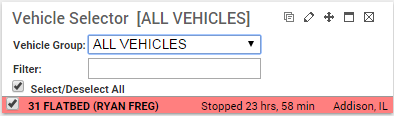
Import Vehicle Information
The portal provides several options for importing and exporting data to and from a spreadsheet. You can use the import option for registering a large batch of vehicles as long as the serial numbers for your devices are already loaded into the portal. The maximum number of rows spreadsheet upload accepts is 1,500. If your spreadsheet has more than this number it is recommended to break it up and perform multiple uploads for each group of 1,500 until it is complete.If you already have data in the portal, it's a good practice to first export the data for safe-keeping so that you can restore if you later make a mistake in your import.
To import vehicles:
Fields in the Reference column on the Update/Export page are required. If your spreadsheet has duplicate data rows for a reference column, such as two rows with the same username or VIN, the spreadsheet upload will only import one record using the last row of data.
Available columns for vehicle import include: VIN, Vehicle Label, Serial Number, Color, License Plate, License Country, License State, Odometer, Make, Model, Model Year, Fuel Type, Fuel Capacity, Idle GPH, Engine Size, Run Time, Run Time Timestamp, and Vehicle Icon. You must include data for the following cells: VIN, Vehicle Label, Serial Number (reference columns), License Country, License State, and Odometer (required fields). All other cells are optional and can be left blank. (See above for descriptions.)For VIN, Serial Number, and Odometer values, format the cells as either number (with no decimal places) or text (if the cell value starts with a 0). If you have multiple items within a cell, use the following delineator(s): : - multiple assignments (e.g., Vehicles:Drivers) ; - multiple items (e.g., red;gray)

The Import Step 2: Define Columns grid appears. This grid allows you to see how your spreadsheet column names (shown in the drop-downs) will be applied to the appropriate fields in the portal (shown in bold). Set any fields marked "IGNORE" to the appropriate column name.

The Import Step 3: Preview Import Data grid appears. This grid allows you to verify the data that will be imported. Valid values for reference fields will be marked with a green check box.

The Import Step 4: Import All Data grid appears. This grid provides a summary of the import results. If any rows were skipped, they will be listed here with the reason they were not imported.

Certain Spreadsheet Upload Actions can update only one column at a time. For example, the Attribute Update process would need to be performed twice to update the Car Color then the Car Type attribute. You would choose "–Ignore--" for one of the attributes during each upload so only one was chosen. (That the column header on that particular spreadsheet is the actual Attribute Name as entered in the system. This name must be listed in the first row to designate the Attribute Name for Attribute update.)
[/solution][solution term="enterprise"]After your device has been installed in your vehicle, you must add the vehicle's information to the Portal (register). You can add vehicles by entering information into the portal one at a time or by importing data from a spreadsheet.
You must have the Vehicle Admin permission in order to manage vehicles.
For most device models, you need to have the following to add the vehicle to the portal (required fields are indicated by an asterisk *): [et class="table-zebra" colwidth="20%|80%"] Field Name,Description Serial Number*,"The unique serial number of each GPS device that is associated with a specific vehicle. The device serial number(s) are pre-populated into your account at the time of installation. Each device can be registered to only one vehicle." Vehicle Label*,The user-friendly identifier for the vehicle used in maps\, reports\, and so on. You can decide how to label each vehicle in your fleet. Examples for vehicle labels may include using numbers for the vehicles (e.g.\, 22\, 23\, 24)\, both numbers and descriptions (e.g.\, 194 - Component Semi)\, the serial number of the device (e.g.\, 433208XXXX)\, or any abbreviated notation that is already in place at your company (e.g.\, TRK-91 for truck or C-42 for crane). You can also override the vehicle label from user preferences.~~~~Please do not use special characters as this may affect reports/exported data. VIN*,"The Vehicle Identification Number. Enter the VIN that is associated with the specific serial number of the installed device. Refer to your vehicle/device registration card (if available) to ensure you associate the right vehicle with the right device." Initial Odometer*,"The mileage on the vehicle at the time of installation. This value may not be required for registration of certain device models." Initial Run Time,"The number of running hours the engine has accumulated. Only relevant for assets, service reminders, or frequent idling." Country*,"The country where the vehicle operates." License State*,"The state in which the vehicle is licensed." License Plate,"The license plate number of the vehicle." Color,"The color of the vehicle." Model Year,"The model year of the vehicle. Automatically populated when VIN is entered." Make,"The make of the vehicle. Automatically populated when VIN is entered." Model,"The model of the vehicle. Automatically populated when VIN is entered." Engine Size (L),"The size of the engine (used to calculate the Idle GPH on emissions reports). If unknown, leave blank." [/et]After initial registration, you can edit more vehicle details, such as Fuel Type, Fuel Capacity, and Visibility. You can also identify other descriptive information for vehicles known as attributes.
Enter Vehicle Information
Entering vehicle information manually is often used when you have a small number of vehicles (1-5) to register at a time.To add a vehicle:
The Manage Vehicles and Groups page opens in a new browser tab.
The Save New Vehicle Registration pop-up window appears with a message stating the vehicle was registered successfully.
If there are current recalls, the Current Vehicle Recalls pop-up appears providing a hyperlink (View Recalls/Edit Vehicle) to view the current recalls associated with the entered VIN. If there are no recalls, the pop-up reads "Changes Saved and you may exit by clicking the Exit button."
From the Vehicle Selector dashlet, you should now see the vehicles you added; however, the vehicle will not appear until it has been driven after the device installation.
Import Vehicle Information
The portal provides several options for importing and exporting data to and from a spreadsheet. You can use the import option for registering a large batch of vehicles as long as the serial numbers for your devices are already loaded into the portal. The maximum number of rows spreadsheet upload accepts is 1,500. If your spreadsheet has more than this number it is recommended to break it up and perform multiple uploads for each group of 1,500 until it is complete.If you already have data in the portal, it's a good practice to first export the data for safe-keeping so that you can restore if you later make a mistake in your import.
To import vehicles:
Fields in the Reference column on the Update/Export page are required. If your spreadsheet has duplicate data rows for a reference column, such as two rows with the same username or VIN, the spreadsheet upload will only import one record using the last row of data.
Available columns for vehicle import include: VIN, Vehicle Label, Serial Number, Color, License Plate, License Country, License State, Odometer, Make, Model, Model Year, Fuel Type, Fuel Capacity, Idle GPH, Engine Size, Run Time, Run Time Timestamp, and Vehicle Icon. You must include data for the following cells: VIN, Vehicle Label, Serial Number (reference columns), License Country, License State, and Odometer (required fields). All other cells are optional and can be left blank. (See above for descriptions.)For VIN, Serial Number, and Odometer values, format the cells as either number (with no decimal places) or text (if the cell value starts with a 0). If you have multiple items within a cell, use the following delineator(s): ~ - full path for hierarchy (e.g., Company Name~East~Northeast) : - multiple assignments (e.g., Vehicles:Drivers) ; - multiple items (e.g., red;gray)
The Import Step 2: Define Columns grid appears. This grid allows you to see how your spreadsheet column names (shown in the drop-downs) will be applied to the appropriate fields in the portal (shown in bold). Set any fields marked "IGNORE" to the appropriate column name.
The Import Step 3: Preview Import Data grid appears. This grid allows you to verify the data that will be imported. Valid values for reference fields will be marked with a green check box.
The Import Step 4: Import All Data grid appears. This grid provides a summary of the import results. If any rows were skipped, they will be listed here with the reason they were not imported.
Certain Spreadsheet Upload Actions can update only one column at a time. For example, the Attribute Update process would need to be performed twice to update the Car Color, then the Car Type attribute. You would choose "–Ignore--" for one of the attributes during each upload so only one was chosen. (That the column header on that particular spreadsheet is the actual Attribute Name as entered in the system. This name must be listed in the first row to designate the Attribute Name for Attribute update.) The Hierarchy Update the spreadsheet process is similar in that you would perform it twice to assign a vehicle to two different Hierarchy Trees.
[/solution] [post_title] => Adding a Vehicle [post_excerpt] => Adding a vehicle allows you to register a new vehicle in your account. [post_status] => publish [comment_status] => closed [ping_status] => closed [post_password] => [post_name] => adding-a-vehicle [to_ping] => [pinged] => [post_modified] => 2023-02-03 12:35:41 [post_modified_gmt] => 2023-02-03 19:35:41 [post_content_filtered] => [post_parent] => 14553 [guid] => http://gpsihelp.wpengine.com/?post_type=documentation&p=362 [menu_order] => 1 [post_type] => documentation [post_mime_type] => [comment_count] => 0 [filter] => raw ) [2] => WP_Post Object ( [ID] => 504 [post_author] => 12 [post_date] => 2015-12-24 18:09:11 [post_date_gmt] => 2015-12-24 18:09:11 [post_content] =>The instructions below are provided for users managing waypoints from the Classic Portal view. If you would like to manage waypoints from the current Portal, please refer to Vehicle Card - Odometer for instructions.
Odometer readings are automatically recorded for each vehicle with an installed device. Although there is often very little difference between reported (GPS Odometer) and actual mileage (Diagnostic Odometer), you may want to take quarterly readings and record them as odometer waypoints in the portal--especially if your company bills for mileage. Should there be any difference between reported and actual (due to a variety of operational variables), the portal will re-factor the difference among all of the trips taken since the last entry and continue to recalibrate for future entries. You can update odometer waypoints by entering values into the web portal one at a time, or you can register in a batch process by importing data from a spreadsheet.You or your drivers can also update odometer waypoints using SMS Messaging.
Enter a Waypoint
Example It has been about six months since a known odometer waypoint has been entered for Vehicle 31, and actual odometer in the vehicle is significantly different from what is shown in the portal.
To enter an odometer waypoint:

The grid updates with a new line item for the waypoint. If the vehicle is turned off, the current odometer value may not update until the vehicle reports again.

The Odometer History chart also updates to reflect the new waypoint.

If the Odometer History chart reflects erratic behavior after adjusting a waypoint, it may be an indication that your device requires a firmware update. Contact Support to resolve the issue with an over-the-air update.
Import Waypoints
The portal provides several options for importing and exporting data to and from a spreadsheet. This option is particularly useful if you want to update information for more than one vehicle at a time.To update waypoints by importing from a spreadsheet
Row 1 contains the column headers (varies by example): VIN (or Serial Number or Vehicle Label), Odometer, and Timestamp.
The Import Step 2: Define Columns grid appears. This grid allows you to see how your spreadsheet column names (shown in the drop-downs) will be applied to the appropriate fields in the GPS Insight portal (shown in bold). Set any fields marked "IGNORE" to the appropriate column name.
The Import Step 3: Preview Import Data grid appears. This grid allows you to verify the data that will be imported. Valid values for reference fields will be marked with a green check box.
The Import Step 4: Import All Data grid appears. This grid provides a summary of the import results. If any rows were skipped, they will be listed here with the reason they were not imported.
The run time for the device will continue to increment after swaps or transfers. It cannot be reset.
Adjustment Baseline
If you know the run time of the vehicle at the time of device installation, you can calibrate the difference by entering the “Run Time (lifetime)” on the Edit Vehicle Details page in the “Run Time Adjustment” section. After this calibration, everywhere the run time value appears in the portal (i.e., reports, dashlets, etc.), the value will include the adjustment baseline and be labeled “Total Engine Hours" instead of "Total GPS Device Hours."Example Company XYZ installed new tracking devices for their forklift equipment at their dispatch center and needs to reset the device runtime for one of the machines.
To adjust run time baseline
If your unit gets run time from the vehicle's diagnostics, the Diagnostic Run Time is shown on the first line. If your vehicle does not get run time from diagnostics, the Device Run Time is shown.
If a run time adjustment is required to set the Run Time to 0, then 0.0 must be entered in the Run Time (lifetime) field. of the Run Time Adjustment window.

The new run time value is saved and will be used in relevant reports (e.g., Run Time Report).

The applicable input add-on must be installed for your supported device prior to selecting inputs in the Portal to collect and transmit the relevant input data.
Selecting an Input
You can select switch inputs for existing vehicles equipped with supported devices directly from the Classic Portal.How to select an input:

Defining a Switch
You can define switch inputs for existing vehicles equipped with supported devices directly from the Classic Portal.How to define a switch:

Deleting an Input
You can delete switch inputs for existing vehicles equipped with supported devices directly from the Classic Portal.Inputs cannot be edited and instead must be deleted and then subsequently added. This is to avoid accidental changes that may affect input tracking across the fleet.
How to delete an input:

Selecting Inputs for New Vehicle Registration
You can select inputs while registering a new vehicle with a supported device in the Classic Portal.How to select inputs for a vehicle during registration:

Edit Vehicle Details
When you register a new vehicle, basic vehicle information is required. After registration, you can edit any of the basic vehicle information, as well as additional settings. You cannot, however, edit the serial number. See transferring a device (below) to move a device to another vehicle.To edit a vehicle:
[et colwidth="20%|80%" class="table-zebra"]
Field Name,Description
Runtime,"The number of engine hours."
Phone Number,"The phone number used to contact the vehicle / driver. (Used with alerts and messaging.)"
Email,"The email address used to contact the vehicle / driver. (Used with alerts and messaging.)"
Alert Preference,"Select the preferred method(s) of communication for the vehicle."
[/et]
Transfer a Device
If you need to transfer a device from one vehicle to another, the existing registration (associated with the old VIN) will be deleted.To transfer a device:
Request Deactivation for a Device
Technical Support can deactivate a device remotely. Deactivation requests are processed at the end of the month.To deactivate a device:
A copy of the deactivation request will be sent to the email address on file for your account. You cannot modify the deactivation request in the web interface once the request has been made. If you need to make changes, please contact Support.
[/solution][solution term="pro,enterprise"] The Manage Vehicles page provides a comprehensive view of the information for a specific vehicle and allows you to add and edit additional vehicle information beyond what you entered during the vehicle registration process. You can also update vehicle settings by way of spreadsheet import.Filter the Vehicle List
If your vehicle list is long, you can use filter options to isolate a subset of vehicles.To filter the vehicle list:
The Manage Vehicles and Groups page opens in a new browser tab.
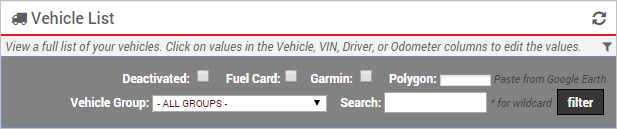
The vehicle list shows only the vehicles that match your filter criteria.
Edit Vehicle Details
The vehicle information reflects the values you entered during registration. Additional fields that were not available on the registration form include: Fuel Type, Fuel Capacity, and Hide Location.To edit vehicle details:
The Manage Vehicles and Groups page opens in a new browser tab.
You can also export vehicle information from the bottom of this page or update vehicle details in a batch process using spreadsheet import.
The Edit Vehicle Details page appears.
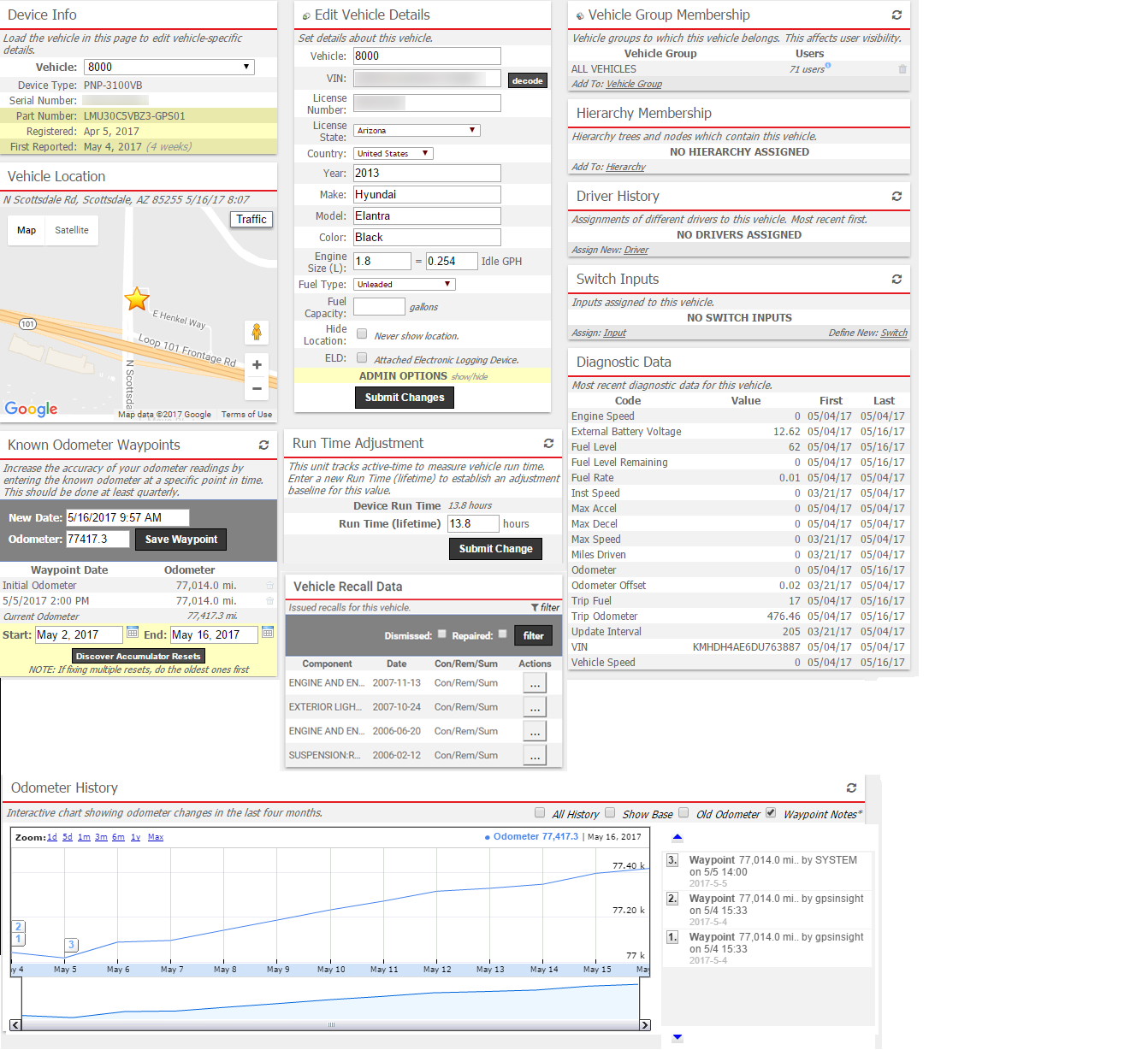
If you want to quickly switch to another vehicle from this page, use the Vehicle drop-down.
Editing Vehicle Recall Data
The Vehicle Recall Data section shows issued recalls for the selected vehicle. You may filter this list by Dismissed or Repaired status by using the corresponding checkboxes. You may also collapse the filter function by clicking on filter.How to edit the Vehicle Recall Data list:


Any edits made to recalls issued for the selected vehicle on the Edit Vehicle Details page are reflected in subsequent reports.

Editing a Vehicle Label with an Attached Logging Device
If you have provisioned a tablet in a vehicle and you make a change to the vehicle label by following the instructions provided above, you are required to reprovision the tablet. A warning icon (Vehicle List) or message (Edit Vehicle Details) as described below appears to notify you that the tablet must be reprovisioned. Vehicle List Warning: Edit Vehicle Details Warning:

Idle GPH that is available from diagnostic data (if configured for the device) overrides calculated Idle GPH values.
 Additionally, if your organization uses fuel card integration, the vehicle's capacity helps identify potential slippage on related fuel card reports. In the example below, FLATBED-31 has a fuel capacity set, so it's easy to tell when a fuel card was used to pump MORE than the vehicle's capacity. The other vehicle in the report does not have a fuel capacity set, so the report is unable to indicate whether or not the 23.309 gallons pumped was for a 21-gallon tank or a 26-gallon tank--the difference of which can easily shift from normal to suspicious activity.

Example Company XYZ's owner wants to measure his fleet's monthly fuel consumption and Co2 emissions for idle time.
To set vehicle Fuel Type and Idle GPH:
The Fuel and Emissions page opens in a new browser tab.
The Edit Vehicle Details page (Account > Manage Vehicles > Open > Edit icon) also allows you to edit Idle GPH, Fuel Type, and Fuel Capacity for the vehicles in your fleet. Although you can use either page to set the values, the Fuel and Emissions Info page provides an Idle GPH calculator and allows you to edit directly within the grid (with the exception of setting a new Fuel Type value).

GHG Reporting
Greenhouse Gas (GHG) Reporting is only found on the Idle Summary and Idle Detail reports. As it is limited to those reports, it is also limited to Greenhouse Gas emissions at idle. The basic equation that you can find onlined for vehicles is to calculate Tons of co2 based on gallons of fuel consumed. The full equation is: [tons of c02] = [idle time] * [co2 rate by fuel type] * [idle gallons per hour]There are three (3) main factors to GHG Reporting:
Example Company XYZ's, Service vans are tracked for diagnostics, but those particular models do not report diagnostics for seat belt and odometer. The owner wants to remove those line items from the Diagnostic Report since it will always appear blank.
To modify vehicle diagnostic access
The Manage Diagnostic Access page opens in a new browser tab.
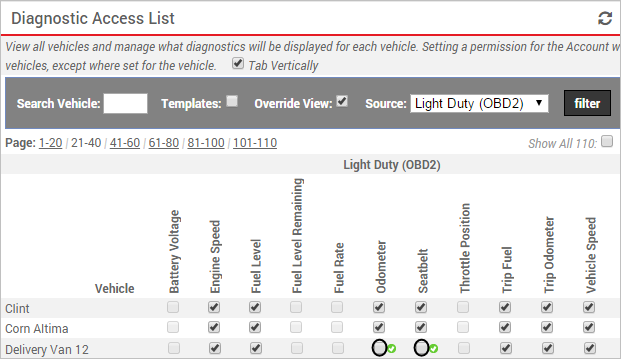
In the Company XYZ example, we filtered the vehicle list by "Light Duty," and then we cleared the Odometer and Seatbelt check boxes.
Now whenever a user runs the Diagnostics Report in the Company XYZ account, the Odometer and Seatbelt line items are omitted from the results.

Inputs on Map
To show Vehicle Inputs on your current map, make sure you have your map preferences set up to show Input Status.To check if your preferences are set to show inputs:
Anytime an input is currently engaged, you will see a star icon on the vehicle’s label.
Inputs on Trip History
Capturing inputs in trip history will help you understand what actually occurred during a vehicle’s trip, which can help with safety initiatives.To see input details on your trip history:
You can expand your inputs and filter out inputs you don’t want to see.

Inputs on Reports and Alerts
You can add PTO and Input data to certain reports and alerts to provide more insight into vehicle activity.Reports with input data:
Alerts with input data:
Frequently Asked Questions
[et class="table-zebra" colwidth="40%|60%"] Question,Answer Which devices are compatible with Inputs?,The following devices can be set up with inputs:~~GO9s~~GPSI-5000s~~GPSI-4100s~~GPSI-4000s~~GPSI-3900s~~AT-3000s How many input connections can you have on one device/vehicle?,The number of input switches varies based on the device type:~~GO9s = 4 inputs~~GPSI-5000s = 4 inputs~~GPSI-4100s = 4 inputs~~GPSI-4000s = 4 inputs ~~GPSI-3900s = 4 inputs~~AT-3000s = 2 inputs [/et] [post_title] => Managing Vehicle Input History [post_excerpt] => [post_status] => publish [comment_status] => closed [ping_status] => closed [post_password] => [post_name] => managing-vehicle-input-history [to_ping] => [pinged] => [post_modified] => 2023-03-30 08:18:52 [post_modified_gmt] => 2023-03-30 15:18:52 [post_content_filtered] => [post_parent] => 14553 [guid] => https://help.gpsinsight.com/?post_type=documentation&p=23046 [menu_order] => 0 [post_type] => documentation [post_mime_type] => [comment_count] => 0 [filter] => raw ) [9] => WP_Post Object ( [ID] => 980 [post_author] => 12 [post_date] => 2016-01-26 18:15:50 [post_date_gmt] => 2016-01-26 18:15:50 [post_content] => The portal integrates with several fuel card vendors. If you are a card account holder and want fuel card integration, email your account number to Support. (WEX account numbers are in the format: XXXX-00-XXXXXX-X.) Available fuel card sites and fuel card profiles will be available from within the portal after integration is complete (varies by fleet size). For Fleetcor or Comdata accounts, you may also have to manually match each fuel card profile with the corresponding vehicle (by VIN).Example Company XYZ provides fuel cards to drivers to be used at designated fuel sites. At the end of each month, XYZ's owner generates Fuel Card Reports to see flagged activity where a specified vehicle was not present for the associated purchase transaction and to catch any unauthorized (non-fuel) purchases.
To match WEX fuel card profiles with vehicles in your fleet:
The Manage Fuel Card Sites page opens in a new browser tab.
The vehicle you choose MUST have a VIN that matches the VIN shown in the Fuel Card Vehicle data. If you are unsure which vehicle to choose based on the vehicle name, open the Manage Vehicles and Groups page (Account > Manage Vehicles > Open), and view all vehicles (including VIN).

After you've matched each fuel card profile with a vehicle in your fleet, it should take 24-48 hours for the data to be linked. A fuel card icon to the left of the vehicle (in the Fuel Card Vehicles grid or the Vehicle List grid) indicates that the link has been made:  . The next time a linked fuel card is used, the data will be available in applicable reports.
In the Company XYZ example, the owner ran the Fuel Card Transactions report. Because of the fuel card-to-vehicle matching, he can now easily identify which transactions associate to each vehicle. (This example shows an over capacity and non-fuel purchases.)
Related Topics
WEX Fuel Card Setup
Fuel Card Integration
Using the Fuel Card Transactions Report
[/well] [post_title] => Matching Fuel Cards with Vehicles [post_excerpt] => The portal integrates with several fuel card vendors. [post_status] => publish [comment_status] => closed [ping_status] => closed [post_password] => [post_name] => matching-fuel-cards-with-vehicles [to_ping] => [pinged] => [post_modified] => 2019-06-05 12:53:24 [post_modified_gmt] => 2019-06-05 19:53:24 [post_content_filtered] => [post_parent] => 14553 [guid] => http://gpsihelp.wpengine.com/?post_type=documentation&p=980 [menu_order] => 8 [post_type] => documentation [post_mime_type] => [comment_count] => 0 [filter] => raw ) [10] => WP_Post Object ( [ID] => 1569 [post_author] => 12 [post_date] => 2016-02-25 17:03:06 [post_date_gmt] => 2016-02-25 17:03:06 [post_content] => If you need to retire a vehicle and replace it with another one, you can transfer the device to the new vehicle. Alternatively, if you're not replacing the vehicle or no longer need the vehicle in the fleet, you can deactivate the device or submit for a return authorization.Historical data moves with a device. If you install a device in another vehicle under a different department, the new department users could see the old historical data on the new vehicle.
Transfer a Device
Transferring a device to another vehicle requires you to register the device to another vehicle immediately after making the selection to transfer.To transfer the device to another vehicle:
The Manage Vehicles and Groups page opens in a new browser tab.


Deactivate a Device
Deactivating a device requires action from the Support team. The deactivation form in the portal automatically notifies Support of the request. Support will notify you when your deactivation request is complete. Please note that devices remain on the account until the end of the month. Request by the 26th of each month to avoid an additional month of billing.If you need to uninstall a device and install it in a new vehicle during the SAME month, rather than deactivate, simply hide the vehicle's visibility until you're ready to transfer it to the new vehicle.
To deactivate a device:
The Manage Vehicles and Groups page opens in a new browser tab.


Your request is put in progress (as indicated by the grayed out trash icon on the vehicle). You'll receive a confirmation email within a few business days when the deactivation has been complete. The device will no longer appear on maps or in reports.
To view historical data for a deactivated device:
The Manage Vehicles and Groups page opens in a new browser tab.
The vehicle now appears in the Vehicle list when the "Deactivated" filter is removed. It will appear in reports for the next four hours or until you click the green icon ( ) to expire the status.
More reference materials:
Swap a Device
Swap allows users to quickly swap a new device serial number into an existing vehicle/asset registration. This feature is valuable for instances where devices are upgraded or replaced through RA. By selecting Swap, the user will have the option to copy the full vehicle profile (vehicle info, associated groups and hierarchy, attributes, inputs, current driver assignment, and scheduled alerts and reports).To swap a device:
SMS recipients who reply "STOP" will be denoted in the grid as having a Blocked Phone Number ( icon). In order to remove a stop request, contact Support.
Example Company XYZ does user driver assignment for vehicles. Add contact information for the vehicle so that any alerts configured to be sent to the "driver" will be delivered to the assumed vehicle operator, despite not having an official driver assigned.
To edit vehicle contact info:
The Manage Vehicles Contact Info page opens in a new browser tab.

In lieu of using this web interface to register a phone number to a vehicle, see Query Services to use SMS messaging for phone number registration.

Create a Vehicle Group
You can create any number of vehicle groups, and a vehicle can belong to more than one group.To create a vehicle group:
You can edit and delete vehicle groups from the Group Card (click a group name to view options). The ALL VEHICLES is a system group that shows all vehicles in your account. You cannot edit or delete this group.
Filter/ Un-filter the Map by Vehicle Group
Filtering the map allows you to show only the members of a particular vehicle group, while temporarily hiding any vehicles that are not in group. You can filter by one group at a time.To filter by group:
The map adjusts to show only the members in the selected group. The hidden vehicles are still available to view and select from the Vehicles tab, but they will not appear on the map.
Sharing / Un-sharing a Vehicle Group
Sharing a vehicle group gives you a public link to a map of vehicles that you can email or share (i.e., display on your company's website for your customers to see). Groups that have been shared have a share indicator ( ).
To share a group:
A new browser tab opens, which shows the selected vehicles as they appear on a publicly available map. Use the URL in the Address Bar of your browser window to copy or share the link. You can access the URL at anytime by clicking the share indicator () next to the group name.
Follow / Un-follow a Group
Following a vehicle group automatically centers the map around the selected vehicles as their locations update.To follow a group:
The map automatically centers around the selected vehicles to ensure they are all in view. The map continues to dynamically center as the vehicles update their locations.
Use the Following box in the upper, left of the map to remove (x) any of the group members from being followed. Also optionally hide other vehicles on the map as long as the Following feature is enabled.

Add Vehicle Groups
You can create any number of vehicle groups. For each group you create, you can assign vehicles and users to that group. Vehicles and users can belong to more than one vehicle group.Example Company XYZ uses trucks to transport large heating/cooling equipment and uses vans for conducting on-site repairs. The trucks are assigned to a "Delivery" group and the vans to a "Service" group. When viewing maps and reports, XYZ's owner filters by the "Delivery" group when he only wants to see tracking data related to deliveries for the day. Additionally, XYZ's owner ensures that his Service Manager (Tom Jones) can only see vehicles that belong to the "Service" group when Tom accesses the portal.
To create a new vehicle group:
The Manage Vehicles and Groups page opens in a new browser tab.

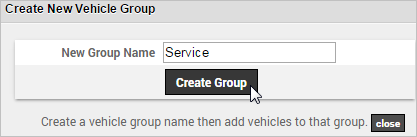
The window refreshes with a list of all vehicles. By default none of your registered vehicles are included in the new group.
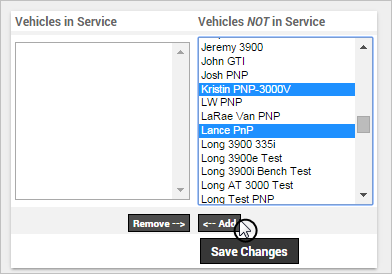
The window refreshes with a list of all users. By default your username is included in the group.
Depending on your stage in the setup process, you may only have one user (yourself) listed here. You can also manage user access to vehicle groups from the Users administration page.

Set Vehicle Group Membership
Each time you create a new group, you can assign vehicle(s) and user(s) to that group. If you skipped a vehicle by mistake during that process, or if you want to quickly update group membership for a specific vehicle after initial group creation, you can use this process.To assign or remove a vehicle to/from one or more groups:
The Manage Vehicles and Groups page opens in a new browser tab.
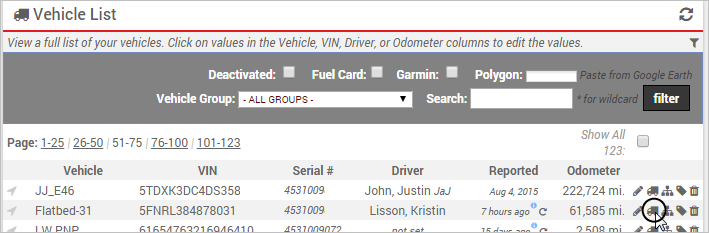
The window refreshes with a list of all vehicle groups including those groups that are already assigned to the current vehicle.
 . Instead of using a circle, you can assign different shapes to different vehicles to get an immediate visual indicator for the vehicle type.
Example Company XYZ uses trucks to transport large heating/cooling equipment and uses vans for conducting on-site repairs. When viewing maps, XYZ's owner wants to identify delivery trucks with a special icon so that they are easily distinguished from the vans.
To define and apply a vehicle icon
The Manage Vehicle Icons page opens in a new browser tab.
Hover over a vehicle icon in the list to see a larger image. 

In the Company XYZ example, we filtered the vehicle list by vehicle group "Delivery" to see only our delivery trucks at once, and then we selected all rows.
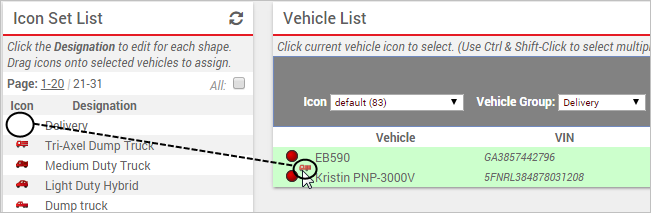
Now whenever the selected vehicles appear on a map, the new icon you designated will be used to represent the vehicle's location. In the example below, the delivery truck is represented by the truck icon, whereas the van uses the default icon.

When you click on a vehicle from the list or when you click on a vehicle from the map, the Vehicle Card appears, which shows you the duration of vehicle status, last reported time of ignition status, address and geocode of last reported location, and current odometer reading (GPS odometer). Additional menu items are also available for the selected vehicle.
"Help! Why can't I see my vehicles on the map?" Ensure the map filters are turned off (i.e., show ALL VEHICLES).
[/solution][solution term="pro,enterprise"]All of your registered vehicles and/or assets are visible on maps and dashlets. Vehicles are color-coded according to their current status (i.e., moving, idling, stopped). [row] [column lg="3" md="12" sm="12" xs="12" ]
[/column]
[column lg="9" md="12" sm="12" xs="12" ]
The thresholds shown in the legend are customizable. Click the User Preferences icon () on the dashboard to set thresholds for Speed (mph), Idle Time (minutes) Stop Time (minutes), and Out of Range (minutes).
Icon shapes are also customizalbe. Instead of using a circle (), you can assign different icon shapes to different vehicles to get an immediate visual indicator for the vehicle type.
[/column]
[column lg="5" md="12" sm="12" xs="12" ]
The information on the Vehicle Card varies depending on the map type and the features available to your account.
[/column] [/row] The Vehicle Management page also allows you to register new devices, edit vehicle properties, assign vehicle groups, and more.In order to manage vehicles, you must have the Vehicle Admin permission enabled in the User Access List.
[/solution]
[post_title] => About Vehicles
[post_excerpt] => Get to know the basics about how vehicle data is displayed in the map.
[post_status] => publish
[comment_status] => closed
[ping_status] => closed
[post_password] =>
[post_name] => about-vehicles
[to_ping] =>
[pinged] =>
[post_modified] => 2023-01-09 14:38:45
[post_modified_gmt] => 2023-01-09 21:38:45
[post_content_filtered] =>
[post_parent] => 0
[guid] => https://help.gpsinsight.com/?post_type=documentation&p=14553
[menu_order] => 0
[post_type] => documentation
[post_mime_type] =>
[comment_count] => 0
[filter] => raw
)
[comment_count] => 0
[current_comment] => -1
[found_posts] => 14
[max_num_pages] => 1
[max_num_comment_pages] => 0
[is_single] =>
[is_preview] =>
[is_page] =>
[is_archive] => 1
[is_date] =>
[is_year] =>
[is_month] =>
[is_day] =>
[is_time] =>
[is_author] =>
[is_category] =>
[is_tag] =>
[is_tax] => 1
[is_search] =>
[is_feed] =>
[is_comment_feed] =>
[is_trackback] =>
[is_home] =>
[is_privacy_policy] =>
[is_404] =>
[is_embed] =>
[is_paged] =>
[is_admin] =>
[is_attachment] =>
[is_singular] =>
[is_robots] =>
[is_favicon] =>
[is_sitemap] =>
[is_posts_page] =>
[is_post_type_archive] => 1
[query_vars_hash:WP_Query:private] => 58abb90aa7961aada15b34aeedaaabc3
[query_vars_changed:WP_Query:private] => 1
[thumbnails_cached] =>
[allow_query_attachment_by_filename:protected] =>
[stopwords:WP_Query:private] =>
[compat_fields:WP_Query:private] => Array
(
[0] => query_vars_hash
[1] => query_vars_changed
)
[compat_methods:WP_Query:private] => Array
(
[0] => init_query_flags
[1] => parse_tax_query
)
[query_cache_key:WP_Query:private] => wp_query:aec180e6bba1c8b59629aa36c150cf00
)
[children] => Array
(
)
[term] => WP_Term Object
(
[term_id] => 17
[name] => Vehicles
[slug] => vehicles
[term_group] => 0
[term_taxonomy_id] => 17
[taxonomy] => feature
[description] => Vehicle features allow you to manage all vehicle activity. You can register new vehicles in your account, edit vehicle information, view vehicle locations on the map, view current status, view historical activity, find the closest vehicles, get directions, center the map around a vehicle, follow a vehicle on the map, send an SMS message, create a landmark from a vehicle's location, and more. You can also create and share vehicle groups and manage access permissions.
[parent] => 0
[count] => 43
[filter] => raw
[term_order] => 8
[cat_ID] => 17
[category_count] => 43
[category_description] => Vehicle features allow you to manage all vehicle activity. You can register new vehicles in your account, edit vehicle information, view vehicle locations on the map, view current status, view historical activity, find the closest vehicles, get directions, center the map around a vehicle, follow a vehicle on the map, send an SMS message, create a landmark from a vehicle's location, and more. You can also create and share vehicle groups and manage access permissions.
[cat_name] => Vehicles
[category_nicename] => vehicles
[category_parent] => 0
)
[post_count] => 14
)
)
[video] => Array
(
[17] => Array
(
[posts] => WP_Query Object
(
[query] => Array
(
[orderby] => title
[order] => ASC
[post_type] => video
[posts_per_page] => 999
[tax_query] => Array
(
[0] => Array
(
[taxonomy] => feature
[field] => term_id
[terms] => 17
[include_children] => 1
)
[1] => Array
(
[taxonomy] => solution
[field] => term_id
[terms] => 12
)
[relation] => AND
[2] => Array
(
[taxonomy] => product
[field] => term_id
[terms] => 511
)
)
[meta_query] => Array
(
[0] => Array
(
[key] => _exclude_whitelabel_full
[compare] => NOT EXISTS
)
)
)
[query_vars] => Array
(
[orderby] => title
[order] => ASC
[post_type] => video
[posts_per_page] => 999
[tax_query] => Array
(
[0] => Array
(
[taxonomy] => feature
[field] => term_id
[terms] => 17
[include_children] => 1
)
[1] => Array
(
[taxonomy] => solution
[field] => term_id
[terms] => 12
)
[relation] => AND
[2] => Array
(
[taxonomy] => product
[field] => term_id
[terms] => 511
)
)
[meta_query] => Array
(
[0] => Array
(
[key] => _exclude_whitelabel_full
[compare] => NOT EXISTS
)
)
[error] =>
[m] =>
[p] => 0
[post_parent] =>
[subpost] =>
[subpost_id] =>
[attachment] =>
[attachment_id] => 0
[name] =>
[pagename] =>
[page_id] => 0
[second] =>
[minute] =>
[hour] =>
[day] => 0
[monthnum] => 0
[year] => 0
[w] => 0
[category_name] =>
[tag] =>
[cat] =>
[tag_id] =>
[author] =>
[author_name] =>
[feed] =>
[tb] =>
[paged] => 0
[meta_key] =>
[meta_value] =>
[preview] =>
[s] =>
[sentence] =>
[title] =>
[fields] => all
[menu_order] =>
[embed] =>
[category__in] => Array
(
)
[category__not_in] => Array
(
)
[category__and] => Array
(
)
[post__in] => Array
(
)
[post__not_in] => Array
(
[0] => 14750
[1] => 23436
[2] => 27424
[3] => 27817
[4] => 30225
[5] => 31065
[6] => 31175
[7] => 32017
[8] => 32296
[9] => 32565
[10] => 32605
[11] => 32636
[12] => 33723
[13] => 33737
[14] => 33761
[15] => 34344
[16] => 34459
[17] => 34553
[18] => 34586
[19] => 34590
[20] => 34651
[21] => 34657
[22] => 34659
)
[post_name__in] => Array
(
)
[tag__in] => Array
(
)
[tag__not_in] => Array
(
)
[tag__and] => Array
(
)
[tag_slug__in] => Array
(
)
[tag_slug__and] => Array
(
)
[post_parent__in] => Array
(
)
[post_parent__not_in] => Array
(
)
[author__in] => Array
(
)
[author__not_in] => Array
(
)
[search_columns] => Array
(
)
[ignore_sticky_posts] =>
[suppress_filters] =>
[cache_results] => 1
[update_post_term_cache] => 1
[update_menu_item_cache] =>
[lazy_load_term_meta] => 1
[update_post_meta_cache] => 1
[nopaging] =>
[comments_per_page] => 50
[no_found_rows] =>
[taxonomy] => feature
[term_id] => 17
)
[tax_query] => WP_Tax_Query Object
(
[queries] => Array
(
[0] => Array
(
[taxonomy] => feature
[terms] => Array
(
[0] => 17
)
[field] => term_id
[operator] => IN
[include_children] => 1
)
[1] => Array
(
[taxonomy] => solution
[terms] => Array
(
[0] => 12
)
[field] => term_id
[operator] => IN
[include_children] => 1
)
[relation] => AND
[2] => Array
(
[taxonomy] => product
[terms] => Array
(
[0] => 511
)
[field] => term_id
[operator] => IN
[include_children] => 1
)
)
[relation] => AND
[table_aliases:protected] => Array
(
[0] => wp_term_relationships
[1] => tt1
[2] => tt2
)
[queried_terms] => Array
(
[feature] => Array
(
[terms] => Array
(
[0] => 17
)
[field] => term_id
)
[solution] => Array
(
[terms] => Array
(
[0] => 12
)
[field] => term_id
)
[product] => Array
(
[terms] => Array
(
[0] => 511
)
[field] => term_id
)
)
[primary_table] => wp_posts
[primary_id_column] => ID
)
[meta_query] => WP_Meta_Query Object
(
[queries] => Array
(
[0] => Array
(
[key] => _exclude_whitelabel_full
[compare] => NOT EXISTS
)
[relation] => OR
)
[relation] => AND
[meta_table] => wp_postmeta
[meta_id_column] => post_id
[primary_table] => wp_posts
[primary_id_column] => ID
[table_aliases:protected] => Array
(
[0] => wp_postmeta
)
[clauses:protected] => Array
(
[wp_postmeta] => Array
(
[key] => _exclude_whitelabel_full
[compare] => NOT EXISTS
[compare_key] => =
[alias] => wp_postmeta
[cast] => CHAR
)
)
[has_or_relation:protected] =>
)
[date_query] =>
[request] => SELECT SQL_CALC_FOUND_ROWS wp_posts.ID
FROM wp_posts LEFT JOIN wp_term_relationships ON (wp_posts.ID = wp_term_relationships.object_id) LEFT JOIN wp_term_relationships AS tt1 ON (wp_posts.ID = tt1.object_id) LEFT JOIN wp_term_relationships AS tt2 ON (wp_posts.ID = tt2.object_id) LEFT JOIN wp_postmeta ON ( wp_posts.ID = wp_postmeta.post_id AND wp_postmeta.meta_key = '_exclude_whitelabel_full' )
WHERE 1=1 AND wp_posts.ID NOT IN (14750,23436,27424,27817,30225,31065,31175,32017,32296,32565,32605,32636,33723,33737,33761,34344,34459,34553,34586,34590,34651,34657,34659) AND (
wp_term_relationships.term_taxonomy_id IN (17)
AND
tt1.term_taxonomy_id IN (12)
AND
tt2.term_taxonomy_id IN (511)
) AND (
wp_postmeta.post_id IS NULL
) AND ((wp_posts.post_type = 'video' AND (wp_posts.post_status = 'publish' OR wp_posts.post_status = 'graded' OR wp_posts.post_status = 'not_graded')))
GROUP BY wp_posts.ID
ORDER BY wp_posts.post_title ASC
LIMIT 0, 999
[posts] => Array
(
[0] => WP_Post Object
(
[ID] => 1019
[post_author] => 12
[post_date] => 2016-01-28 15:56:20
[post_date_gmt] => 2016-01-28 15:56:20
[post_content] => After your device(s) have been installed in your vehicle(s), you must add the vehicle’s information to the portal. You can add vehicles by entering information into the portal one at a time or by importing data from a spreadsheet.
Although the portal interface has been updated since this video was recorded, the process has not changed.
[post_title] => Adding a Vehicle [post_excerpt] => After your device(s) have been installed in your vehicle(s), you must add the vehicle’s information to the portal. [post_status] => publish [comment_status] => closed [ping_status] => closed [post_password] => [post_name] => adding-a-vehicle [to_ping] => [pinged] => [post_modified] => 2019-11-21 10:15:14 [post_modified_gmt] => 2019-11-21 17:15:14 [post_content_filtered] => [post_parent] => 0 [guid] => http://gpsihelp.wpengine.com/?post_type=video&p=1019 [menu_order] => 0 [post_type] => video [post_mime_type] => [comment_count] => 0 [filter] => raw ) [1] => WP_Post Object ( [ID] => 1029 [post_author] => 12 [post_date] => 2016-01-28 16:17:01 [post_date_gmt] => 2016-01-28 16:17:01 [post_content] => The Manage Vehicles page provides a comprehensive view of the information for a specific vehicle and allows you to add and edit additional vehicle information beyond what you entered during the vehicle registration process. You can also update vehicle settings by way of spreadsheet import.Although the portal interface has been updated since this video was recorded, the process has not changed.
[post_title] => Editing Vehicle Details [post_excerpt] => The Manage Vehicles page provides a comprehensive view of the information for a specific vehicle and allows you to add and edit additional vehicle information beyond what you entered during the vehicle registration process. [post_status] => publish [comment_status] => closed [ping_status] => closed [post_password] => [post_name] => editing-vehicle-details [to_ping] => [pinged] => [post_modified] => 2019-11-21 10:12:27 [post_modified_gmt] => 2019-11-21 17:12:27 [post_content_filtered] => [post_parent] => 0 [guid] => http://gpsihelp.wpengine.com/?post_type=video&p=1029 [menu_order] => 0 [post_type] => video [post_mime_type] => [comment_count] => 0 [filter] => raw ) [2] => WP_Post Object ( [ID] => 1032 [post_author] => 12 [post_date] => 2016-01-28 16:22:58 [post_date_gmt] => 2016-01-28 16:22:58 [post_content] => The Fuel and Emissions Info page allows you to set Fuel Type and Idle GPH (gallons per hour) for each vehicle in your fleet. When those values are set, Greenhouse Gas (GHG) emission rates and Idle Fuel Consumption totals are more accurate on Idle Time Summary and Detail reports. Additionally, if your organization uses fuel card integration, the vehicle’s capacity helps identify potential slippage on related fuel card reports.Although the portal interface has been updated since this video was recorded, the process has not changed.
[post_title] => Managing Fuel and Emissions Information [post_excerpt] => The Fuel and Emissions Info page allows you to set Fuel Type and Idle GPH (gallons per hour) for each vehicle in your fleet. [post_status] => publish [comment_status] => closed [ping_status] => closed [post_password] => [post_name] => managing-fuel-and-emissions-information [to_ping] => [pinged] => [post_modified] => 2019-11-21 10:13:08 [post_modified_gmt] => 2019-11-21 17:13:08 [post_content_filtered] => [post_parent] => 0 [guid] => http://gpsihelp.wpengine.com/?post_type=video&p=1032 [menu_order] => 0 [post_type] => video [post_mime_type] => [comment_count] => 0 [filter] => raw ) [3] => WP_Post Object ( [ID] => 1022 [post_author] => 12 [post_date] => 2016-01-28 16:09:45 [post_date_gmt] => 2016-01-28 16:09:45 [post_content] => Vehicle groups are used to organize the vehicles based on logical separations that make sense to your business. Groups allow you to easily filter reports, maps, and dashlets. Groups also determine which users of your portal account can view information for certain vehicles.Although the portal interface has been updated since this video was recorded, the process has not changed.
[post_title] => Using Vehicle Groups [post_excerpt] => Vehicle groups are used to organize the vehicles based on logical separations that make sense to your business. Groups allow you to easily filter reports, maps, and dashlets. [post_status] => publish [comment_status] => closed [ping_status] => closed [post_password] => [post_name] => using-vehicle-groups [to_ping] => [pinged] => [post_modified] => 2019-11-21 10:15:55 [post_modified_gmt] => 2019-11-21 17:15:55 [post_content_filtered] => [post_parent] => 0 [guid] => http://gpsihelp.wpengine.com/?post_type=video&p=1022 [menu_order] => 0 [post_type] => video [post_mime_type] => [comment_count] => 0 [filter] => raw ) [4] => WP_Post Object ( [ID] => 1026 [post_author] => 12 [post_date] => 2016-01-28 16:12:45 [post_date_gmt] => 2016-01-28 16:12:45 [post_content] => When viewing a vehicle’s location on a map, the default icon appears as a pin with a circle:. Instead of using a circle, you can assign different shapes to different vehicles to get an immediate visual indicator for the vehicle type.
Although the portal interface has been updated since this video was recorded, the process has not changed.
[post_title] => Using Vehicle Icons [post_excerpt] => When viewing a vehicle’s location on a map, the default icon appears as a pin with a circle. [post_status] => publish [comment_status] => closed [ping_status] => closed [post_password] => [post_name] => using-vehicle-icons [to_ping] => [pinged] => [post_modified] => 2019-11-21 10:11:35 [post_modified_gmt] => 2019-11-21 17:11:35 [post_content_filtered] => [post_parent] => 0 [guid] => http://gpsihelp.wpengine.com/?post_type=video&p=1026 [menu_order] => 0 [post_type] => video [post_mime_type] => [comment_count] => 0 [filter] => raw ) [5] => WP_Post Object ( [ID] => 3576 [post_author] => 12 [post_date] => 2016-09-08 19:34:36 [post_date_gmt] => 2016-09-08 19:34:36 [post_content] => From the Map Dashboard, click the Vehicles menu item to open the Vehicles tab. All of your vehicles and their color-coded statuses are listed on this tab. When you click on a vehicle from the list or when you click on a vehicle from the map, the Vehicle Card appears, which shows you the duration of vehicle status, last reported time of ignition status, address and geocode of last reported location, and current odometer reading. Additional menu items are also available for the selected vehicle. [post_title] => Using Vehicles on the Map Dashboard [post_excerpt] => From the Map Dashboard, click the Vehicles menu item to open the Vehicles tab. [post_status] => publish [comment_status] => closed [ping_status] => closed [post_password] => [post_name] => using-vehicles-on-the-map-dashboard [to_ping] => [pinged] => [post_modified] => 2019-11-21 10:14:07 [post_modified_gmt] => 2019-11-21 17:14:07 [post_content_filtered] => [post_parent] => 0 [guid] => https://help.gpsinsight.com/?post_type=video&p=3576 [menu_order] => 0 [post_type] => video [post_mime_type] => [comment_count] => 0 [filter] => raw ) ) [post_count] => 6 [current_post] => -1 [before_loop] => 1 [in_the_loop] => [post] => WP_Post Object ( [ID] => 1019 [post_author] => 12 [post_date] => 2016-01-28 15:56:20 [post_date_gmt] => 2016-01-28 15:56:20 [post_content] => After your device(s) have been installed in your vehicle(s), you must add the vehicle’s information to the portal. You can add vehicles by entering information into the portal one at a time or by importing data from a spreadsheet.Although the portal interface has been updated since this video was recorded, the process has not changed.
[post_title] => Adding a Vehicle [post_excerpt] => After your device(s) have been installed in your vehicle(s), you must add the vehicle’s information to the portal. [post_status] => publish [comment_status] => closed [ping_status] => closed [post_password] => [post_name] => adding-a-vehicle [to_ping] => [pinged] => [post_modified] => 2019-11-21 10:15:14 [post_modified_gmt] => 2019-11-21 17:15:14 [post_content_filtered] => [post_parent] => 0 [guid] => http://gpsihelp.wpengine.com/?post_type=video&p=1019 [menu_order] => 0 [post_type] => video [post_mime_type] => [comment_count] => 0 [filter] => raw ) [comment_count] => 0 [current_comment] => -1 [found_posts] => 6 [max_num_pages] => 1 [max_num_comment_pages] => 0 [is_single] => [is_preview] => [is_page] => [is_archive] => 1 [is_date] => [is_year] => [is_month] => [is_day] => [is_time] => [is_author] => [is_category] => [is_tag] => [is_tax] => 1 [is_search] => [is_feed] => [is_comment_feed] => [is_trackback] => [is_home] => [is_privacy_policy] => [is_404] => [is_embed] => [is_paged] => [is_admin] => [is_attachment] => [is_singular] => [is_robots] => [is_favicon] => [is_sitemap] => [is_posts_page] => [is_post_type_archive] => 1 [query_vars_hash:WP_Query:private] => 51e8acedb7116d749fb959ff2104e63d [query_vars_changed:WP_Query:private] => 1 [thumbnails_cached] => [allow_query_attachment_by_filename:protected] => [stopwords:WP_Query:private] => [compat_fields:WP_Query:private] => Array ( [0] => query_vars_hash [1] => query_vars_changed ) [compat_methods:WP_Query:private] => Array ( [0] => init_query_flags [1] => parse_tax_query ) [query_cache_key:WP_Query:private] => wp_query:99b54b0544a71766e1efb8b1c5bf6014 ) [children] => Array ( ) [term] => WP_Term Object ( [term_id] => 17 [name] => Vehicles [slug] => vehicles [term_group] => 0 [term_taxonomy_id] => 17 [taxonomy] => feature [description] => Vehicle features allow you to manage all vehicle activity. You can register new vehicles in your account, edit vehicle information, view vehicle locations on the map, view current status, view historical activity, find the closest vehicles, get directions, center the map around a vehicle, follow a vehicle on the map, send an SMS message, create a landmark from a vehicle's location, and more. You can also create and share vehicle groups and manage access permissions. [parent] => 0 [count] => 43 [filter] => raw [term_order] => 8 [cat_ID] => 17 [category_count] => 43 [category_description] => Vehicle features allow you to manage all vehicle activity. You can register new vehicles in your account, edit vehicle information, view vehicle locations on the map, view current status, view historical activity, find the closest vehicles, get directions, center the map around a vehicle, follow a vehicle on the map, send an SMS message, create a landmark from a vehicle's location, and more. You can also create and share vehicle groups and manage access permissions. [cat_name] => Vehicles [category_nicename] => vehicles [category_parent] => 0 ) [post_count] => 6 ) ) [bestpractice] => Array ( [17] => Array ( [posts] => WP_Query Object ( [query] => Array ( [orderby] => title [order] => ASC [post_type] => bestpractice [posts_per_page] => 999 [tax_query] => Array ( [0] => Array ( [taxonomy] => feature [field] => term_id [terms] => 17 [include_children] => 1 ) [1] => Array ( [taxonomy] => solution [field] => term_id [terms] => 12 ) [relation] => AND [2] => Array ( [taxonomy] => product [field] => term_id [terms] => 511 ) ) [meta_query] => Array ( [0] => Array ( [key] => _exclude_whitelabel_full [compare] => NOT EXISTS ) ) ) [query_vars] => Array ( [orderby] => title [order] => ASC [post_type] => bestpractice [posts_per_page] => 999 [tax_query] => Array ( [0] => Array ( [taxonomy] => feature [field] => term_id [terms] => 17 [include_children] => 1 ) [1] => Array ( [taxonomy] => solution [field] => term_id [terms] => 12 ) [relation] => AND [2] => Array ( [taxonomy] => product [field] => term_id [terms] => 511 ) ) [meta_query] => Array ( [0] => Array ( [key] => _exclude_whitelabel_full [compare] => NOT EXISTS ) ) [error] => [m] => [p] => 0 [post_parent] => [subpost] => [subpost_id] => [attachment] => [attachment_id] => 0 [name] => [pagename] => [page_id] => 0 [second] => [minute] => [hour] => [day] => 0 [monthnum] => 0 [year] => 0 [w] => 0 [category_name] => [tag] => [cat] => [tag_id] => [author] => [author_name] => [feed] => [tb] => [paged] => 0 [meta_key] => [meta_value] => [preview] => [s] => [sentence] => [title] => [fields] => all [menu_order] => [embed] => [category__in] => Array ( ) [category__not_in] => Array ( ) [category__and] => Array ( ) [post__in] => Array ( ) [post__not_in] => Array ( [0] => 14750 [1] => 23436 [2] => 27424 [3] => 27817 [4] => 30225 [5] => 31065 [6] => 31175 [7] => 32017 [8] => 32296 [9] => 32565 [10] => 32605 [11] => 32636 [12] => 33723 [13] => 33737 [14] => 33761 [15] => 34344 [16] => 34459 [17] => 34553 [18] => 34586 [19] => 34590 [20] => 34651 [21] => 34657 [22] => 34659 ) [post_name__in] => Array ( ) [tag__in] => Array ( ) [tag__not_in] => Array ( ) [tag__and] => Array ( ) [tag_slug__in] => Array ( ) [tag_slug__and] => Array ( ) [post_parent__in] => Array ( ) [post_parent__not_in] => Array ( ) [author__in] => Array ( ) [author__not_in] => Array ( ) [search_columns] => Array ( ) [ignore_sticky_posts] => [suppress_filters] => [cache_results] => 1 [update_post_term_cache] => 1 [update_menu_item_cache] => [lazy_load_term_meta] => 1 [update_post_meta_cache] => 1 [nopaging] => [comments_per_page] => 50 [no_found_rows] => [taxonomy] => feature [term_id] => 17 ) [tax_query] => WP_Tax_Query Object ( [queries] => Array ( [0] => Array ( [taxonomy] => feature [terms] => Array ( [0] => 17 ) [field] => term_id [operator] => IN [include_children] => 1 ) [1] => Array ( [taxonomy] => solution [terms] => Array ( [0] => 12 ) [field] => term_id [operator] => IN [include_children] => 1 ) [relation] => AND [2] => Array ( [taxonomy] => product [terms] => Array ( [0] => 511 ) [field] => term_id [operator] => IN [include_children] => 1 ) ) [relation] => AND [table_aliases:protected] => Array ( [0] => wp_term_relationships [1] => tt1 [2] => tt2 ) [queried_terms] => Array ( [feature] => Array ( [terms] => Array ( [0] => 17 ) [field] => term_id ) [solution] => Array ( [terms] => Array ( [0] => 12 ) [field] => term_id ) [product] => Array ( [terms] => Array ( [0] => 511 ) [field] => term_id ) ) [primary_table] => wp_posts [primary_id_column] => ID ) [meta_query] => WP_Meta_Query Object ( [queries] => Array ( [0] => Array ( [key] => _exclude_whitelabel_full [compare] => NOT EXISTS ) [relation] => OR ) [relation] => AND [meta_table] => wp_postmeta [meta_id_column] => post_id [primary_table] => wp_posts [primary_id_column] => ID [table_aliases:protected] => Array ( [0] => wp_postmeta ) [clauses:protected] => Array ( [wp_postmeta] => Array ( [key] => _exclude_whitelabel_full [compare] => NOT EXISTS [compare_key] => = [alias] => wp_postmeta [cast] => CHAR ) ) [has_or_relation:protected] => ) [date_query] => [request] => SELECT SQL_CALC_FOUND_ROWS wp_posts.ID FROM wp_posts LEFT JOIN wp_term_relationships ON (wp_posts.ID = wp_term_relationships.object_id) LEFT JOIN wp_term_relationships AS tt1 ON (wp_posts.ID = tt1.object_id) LEFT JOIN wp_term_relationships AS tt2 ON (wp_posts.ID = tt2.object_id) LEFT JOIN wp_postmeta ON ( wp_posts.ID = wp_postmeta.post_id AND wp_postmeta.meta_key = '_exclude_whitelabel_full' ) WHERE 1=1 AND wp_posts.ID NOT IN (14750,23436,27424,27817,30225,31065,31175,32017,32296,32565,32605,32636,33723,33737,33761,34344,34459,34553,34586,34590,34651,34657,34659) AND ( wp_term_relationships.term_taxonomy_id IN (17) AND tt1.term_taxonomy_id IN (12) AND tt2.term_taxonomy_id IN (511) ) AND ( wp_postmeta.post_id IS NULL ) AND ((wp_posts.post_type = 'bestpractice' AND (wp_posts.post_status = 'publish' OR wp_posts.post_status = 'graded' OR wp_posts.post_status = 'not_graded'))) GROUP BY wp_posts.ID ORDER BY wp_posts.post_title ASC LIMIT 0, 999 [posts] => Array ( [0] => WP_Post Object ( [ID] => 2944 [post_author] => 12 [post_date] => 2016-07-18 01:50:07 [post_date_gmt] => 2016-07-18 01:50:07 [post_content] => [solution term="standard"]Upgrading from a 3G device? Here are the steps to request deactivation, and install and register the upgrade device. [steps] [step pdf_inc="1" title="Request deactivation for the old device."]Until the old device is deactivated, your account WILL be double-billed. Before installing and registering the new devices, submit a request for the old devices to be deactivated. Deactivating a device requires action from the Support team. The deactivation form in the portal automatically notifies Support of the request. The device will be removed from your account at the end of the month. Technical Support can deactivate a device remotely. Deactivation requests are processed at the end of the month.To deactivate a device:


A copy of the deactivation request will be sent to the email address on file for your account. You cannot modify the deactivation request in the web interface once the request has been made. If you need to make changes, please contact Support.
[/step] [step pdf_inc="2" title="Install and register the upgrade device."]By this step, you should have received an email containing instructions for using the Unit Verification App (iOS | Android) and the required and installation key. If you did not receive this installation key, please contact the Support team.To keep device history, make sure you enter the VIN correctly.
If you are not using the app, call Support for verification. If after-hours or weekend installations occur, we recommend establishing a schedule ahead of time.

The Manage Vehicles and Groups page opens in a new browser tab.
Your request is put in progress (as indicated by the grayed out trash icon on the vehicle). You'll receive a confirmation email within a few business days when the deactivation has been complete. The device will no longer appear on maps or in reports.
[/step] [step pdf_inc="2" title="Install and register the upgrade device."]By this step, you should have received an email containing instructions for using the Unit Verification App (iOS | Android) and the required and installation key. If you did not receive this installation key, please contact the Support team.To keep device history, make sure you enter the VIN correctly.
If you are not using the app, call Support for verification. If after-hours or weekend installations occur, we recommend establishing a schedule ahead of time.
Magnuson-Moss Warranty Act
In 1975 the US government enacted the Magnuson-Moss Warranty Act, for which one of the specific purposes was to curtail instances where warrantors/vendors were requiring only their branded parts be used within their product, otherwise, the warranty was voided. The passing of this act ensures that warrantors, or car manufacturers in our use-case, cannot require that only branded parts be used with their product in order to retain the warranty and that if a third party item is used then the full examination of the product is still required when troubleshooting or repairing a defect, failure, or other malfunction. In this instance, if a GPS device is identified as being installed in a vehicle that’s malfunctioning, or needing service, then that technician is still required to perform that service to the best of their ability, all while leaving the GPS device untouched.Vehicle Issue Validation
Some manufacturers, like GM, instruct technicians to validate if the issue reported of the vehicle is caused by the third party device or not. If a technician truly believes that the GPS device is causing the issue, then validation can be performed by attempting to duplicate the issue with the device both installed and then uninstalled. It is specifically called out that only “if on the rare occasion [vehicle] parts appear to have been damaged by the [third party] device or the installation of the [third party] device, this would not be a defect covered under the… Limited Warranty.” It is extremely rare that a GPS device can cause defects or malfunctions within a vehicle, however if the instance arises then please be sure to contact GPS Insight’s Support Team and they can help navigate and resolve the issue. Per our terms & conditions, if GPS Insight is unable to resolve the issue remotely and determines it was the result of an improper installation by the Installer, GPS Insight will schedule a technician to correct such installation under our standard installation warranty. Ultimately, the information above should help inform and provide guidance for if/when there ever comes an instance where a vehicle is refused service due to a GPS device being installed. [post_title] => Vehicle Warranties & Third-Party GPS Devices [post_excerpt] => [post_status] => publish [comment_status] => closed [ping_status] => closed [post_password] => [post_name] => vehicle-warranties-third-party-devices [to_ping] => [pinged] => [post_modified] => 2020-02-18 14:04:33 [post_modified_gmt] => 2020-02-18 21:04:33 [post_content_filtered] => [post_parent] => 0 [guid] => https://help.gpsinsight.com/?post_type=bestpractice&p=19375 [menu_order] => 0 [post_type] => bestpractice [post_mime_type] => [comment_count] => 0 [filter] => raw ) ) [post_count] => 2 [current_post] => -1 [before_loop] => 1 [in_the_loop] => [post] => WP_Post Object ( [ID] => 2944 [post_author] => 12 [post_date] => 2016-07-18 01:50:07 [post_date_gmt] => 2016-07-18 01:50:07 [post_content] => [solution term="standard"]Upgrading from a 3G device? Here are the steps to request deactivation, and install and register the upgrade device. [steps] [step pdf_inc="1" title="Request deactivation for the old device."]Until the old device is deactivated, your account WILL be double-billed. Before installing and registering the new devices, submit a request for the old devices to be deactivated. Deactivating a device requires action from the Support team. The deactivation form in the portal automatically notifies Support of the request. The device will be removed from your account at the end of the month. Technical Support can deactivate a device remotely. Deactivation requests are processed at the end of the month.To deactivate a device:
A copy of the deactivation request will be sent to the email address on file for your account. You cannot modify the deactivation request in the web interface once the request has been made. If you need to make changes, please contact Support.
[/step] [step pdf_inc="2" title="Install and register the upgrade device."]By this step, you should have received an email containing instructions for using the Unit Verification App (iOS | Android) and the required and installation key. If you did not receive this installation key, please contact the Support team.To keep device history, make sure you enter the VIN correctly.
If you are not using the app, call Support for verification. If after-hours or weekend installations occur, we recommend establishing a schedule ahead of time.
The Manage Vehicles and Groups page opens in a new browser tab.
Your request is put in progress (as indicated by the grayed out trash icon on the vehicle). You'll receive a confirmation email within a few business days when the deactivation has been complete. The device will no longer appear on maps or in reports.
[/step] [step pdf_inc="2" title="Install and register the upgrade device."]By this step, you should have received an email containing instructions for using the Unit Verification App (iOS | Android) and the required and installation key. If you did not receive this installation key, please contact the Support team.To keep device history, make sure you enter the VIN correctly.
If you are not using the app, call Support for verification. If after-hours or weekend installations occur, we recommend establishing a schedule ahead of time.
Question: I can't see all of my vehicles in the portal yet. How do I know which devices haven't yet been installed and/or registered?
An unregistered device is in your inventory but not yet associated with a vehicle (and therefore not yet incurring a monitoring fee). When you add a new vehicle, the Serial Number drop-down displays all unregistered devices: If you want to view more details about these unregistered devices (such as device type and date inventoried), you can export this list to CSV.
To export unregistered devices:


The download location may vary depending on the browser you are using. Typically it is saved in C:\Users\yourname\Downloads.

The instructions below are provided for users managing waypoints from the Classic Portal view. If you would like to manage waypoints from the current Portal, please refer to Vehicle Card - Odometer for instructions.
Question: My company bills for mileage, so I want to make sure there is very little difference between device reported mileage and actual mileage. Rather than have drivers take quarterly odometer readings and send them to me to record as waypoints in the portal, is there an easy way that drivers can update their own odometer waypoints?
Odometer readings are automatically recorded for each vehicle with an installed device. Although there is often very little difference between reported (GPS Odometer) and actual mileage (Diagnostic Odometer), it's encouraged to update odometer waypoints [solution term="standard"] (Pro/En) | odometer waypoints (Standard)[/solution] in the portal, which you can either do one at a time or in a batch process by importing data from a spreadsheet (Pro/En only). Should there be any difference between reported and actual (due to a variety of operational variables), the portal will re-factor the difference among all of the trips taken since the last entry and continue to recalibrate for future entries. To streamline this process, you can ask your drivers to make their own updates, which they can do by sending odometer values via SMS message.To update odometer via query services (driver instructions):
Driver query functions do not require authorization, but a driver’s phone number must be added to the driver's profile that is assigned to a vehicle OR to the vehicle's contact information [solution term="standard"](Pro/En) | to the vehicle's contact information (Standard)[/solution] before the driver can issue these queries.
[Odometer value] must not use punctuation. [Vehicle name] is another parameter to include in the query, but it is not required if the driver's SMS number is already assigned to the vehicle. If a driver drives multiple vehicles, specify the vehicle name for the odometer to include in the update.Example: gps Truck1 odo 52345.
You'll receive a response if the update was successful. Example: Odometer for 'Truck1' was updated to 52345.

Learn more driver functions from the query services documentation
[post_title] => How can my drivers update their own odometers? [post_excerpt] => Odometer readings are automatically recorded for each vehicle with an installed device. [post_status] => publish [comment_status] => closed [ping_status] => closed [post_password] => [post_name] => how-can-my-drivers-update-their-own-odometers [to_ping] => [pinged] => [post_modified] => 2025-07-01 12:04:03 [post_modified_gmt] => 2025-07-01 19:04:03 [post_content_filtered] => [post_parent] => 0 [guid] => http://help.gpsinsight.com/?post_type=deepdive&p=2162 [menu_order] => 0 [post_type] => deepdive [post_mime_type] => [comment_count] => 0 [filter] => raw ) [2] => WP_Post Object ( [ID] => 1561 [post_author] => 12 [post_date] => 2016-02-24 22:22:18 [post_date_gmt] => 2016-02-25 05:22:18 [post_content] =>Question:Several vehicles in my fleet are operated by personnel whose location is sensitive (i.e., law enforcement agents). How can I hide their location on maps and reports but still include them in collective reports or alerts?
The hide location feature is a convenient way to remove a vehicle's visibility from most areas of the dashboard and in maps/reports while still being able to use other benefits of the GPS tracking solution. You can optionally hide an individual vehicle's location (see steps below), or you can use the Update Vehicle Labels importer to hide vehicle labels for a group of vehicles.To hide a vehicle's location:
The Manage Vehicles and Groups page opens in a new browser tab.
The Edit Vehicle Details page appears.
If you want to quickly switch to another vehicle from this page, use the Vehicle drop-down.

When you refresh the Manage Vehicles and Groups page, the hidden vehicle will appear with a "hidden" indicator ( ).
The vehicle is removed from various dashlets, such as the Vehicle Selector and Map: 

The vehicle remains on any relevant reports; however, wherever location data is listed, it will be replaced with "Location Unknown," and the Latitude and Longitude values (if relevant to the report) will be set to 0.0000. Export options, such as 3D mapping, also hide the location. 
Question: I have a fleet of 50 vehicles, and we recently decided to change their labels using a better naming convention. How can I easily update the vehicles' labels in a batch process as opposed to editing each vehicle one at a time?
You can add or edit your portal data ad-hoc or via spreadsheet import. Spreadsheet import is helpful for performing these types of batch functions. If you use the Spreadsheet Import tools, it's ALWAYS a good practice to first export the data for safe-keeping so that you can restore if you make a mistake in your import. Or in the case of updating labels, we need to start with the existing data that we want to update.Formatting Tips
Before starting the import process for a particular spreadsheet, become familiar with the following formatting tips:Step-by-Step Process
In this example, we'll stick to the above scenario of updating vehicle labels. Refer to the next section for step-by-step instructions related to other spreadsheet actions.To update vehicle labels via spreadsheet:
Field(s) in the Reference column on the Update/Export page are required. Often the system requires just one reference, but sometimes the import may require more than one. 
Refer to the above general formatting tips while preparing a spreadsheet for import.

The Import Step 2: Define Columns grid appears. This grid allows you to see how your spreadsheet column names (shown in the drop-downs) will be applied to the appropriate fields in the portal (shown in bold). Select the Reference item and match it to the Reference column in your spreadsheet. No changes will be made to the data listed in the Reference column; this will only be used as the identifier to update auxiliary information. Set any fields marked "IGNORE" to the appropriate column name if they will be updated. If you don't want to add/update those columns, leave them set to "IGNORE." Some spreadsheets don't have columns named specifically for "Update" purposes like our example ("Vehicle Label Update"). In those cases, search for the Update section within the drop-down of the field you want to update.


The Import Step 3: Preview Import Data grid appears. This grid allows you to verify the data that will be imported. Valid values for reference fields will be marked with a green check box. The next action will overwrite/add data in the portal, so it's very important to verify that columns are being mapped to the correct areas within the portal. If you haven't already exported your current data as a backup, do so now!

The Import Step 4: Import All Data grid appears. This grid provides a summary of the import results. If any rows were skipped, they will be listed here with the reason they were not imported.
Other Spreadsheet Actions
For other common spreadsheet actions, click the available links for step-by-step instructions (not available for every action): [et class="table-zebra" colwidth="25%|25%|50%"] Action,Reference,Update Create New Users,"Username and Password","First Name, Last Name, Full Name, Email Address, Address, City, State, Zip, Country, Phone Number, Timezone, Vehicle Group Permissions, Hierarchy Permissions, Hierarchy Permission Types, Landmark Group Permissions, Menu Access Template, User to Clone" Update Users,"Username","Password, First Name, Last Name, Full Name, Email Address, Address, City, State, Zip, Country, Phone Number, Timezone, Vehicle Group Permissions, Hierarchy Permissions, Hierarchy Permission Types, Landmark Group Permissions, Menu Access Template, User to Clone Dashboard" Update Odometer Waypoints,"VIN or Vehicle Label or Serial Number","Odometer and Timestamp" Vehicle Group Membership,"VIN or Vehicle Label or Serial Number",Vehicle Group Update Vehicle Labels,"VIN or Vehicle Label or Serial Number","Vehicle Label Update, VIN Update, Vehicle Class, Color, License Plate, License Country, License State, Odometer, Make, Model, Model Year, Fuel Type, Fuel Capacity, Idle GPH, Engine Size, Hide Location, Run Time, Run Time Timestamp, Vehicle Icon" Register New Vehicles,"VIN and Vehicle Label and Serial Number","Color, License Plate, License Country, License State, Odometer, Make, Model, Model Year, Fuel Type, Fuel Capacity, Idle GPH, Engine Size, Hide Location, Run Time, Run Time Timestamp, Vehicle Icon" Create Drivers,"Driver Full Name or Last Name or Reference ID","First Name, Timezone, Country, Email Address, Phone Number, Alert Preferences, Driver ID, Driver Group" Update Drivers,"Driver Full Name or Last Name or Reference ID","Reference ID Update, First Name, Last Name Update, Timezone, Country, Email Address, Phone Number, Alert Preferences, Driver ID, Driver Group" Delete Drivers,"Driver Full Name or Last Name or Reference ID","Reference ID Update, First Name, Last Name Update, Timezone, Country, Email Address, Phone Number, Alert Preferences, Driver ID, Driver Group" Assign Drivers,"VIN or Vehicle Label or Serial Number","Driver Full Name, Last Name, Reference ID" Hierarchy Update,"Tree Node or Node Path","Tree, Parent Node, Driver Full Name, Last Name, Reference ID, Landmark, Username, VIN, Vehicle Label, Serial Number" Attribute Update,"Attribute Value","Attribute Name, Driver Full Name, Last Name, Reference ID, Landmark, Username, VIN, Vehicle Label, Serial Number, Hierarchy Node" Assign Inputs,"VIN or Vehicle Label or Serial Number","Definition, Input Bit, Output Bit, Voltage" Update Vehicle Settings,"VIN or Vehicle Label or Serial Number","Report Interval, Ignition Off, Motion-Based, False Idle, Is Trailer, Trip Setting, No Idle Trips, No Force Idle, Slow Moving, Even Slower, Save All Idle, Use Diagnostic Odometer, Garmin" Create Service Logs,"VIN or Vehicle Label or Serial Number","Performed at Miles, Performed at Hours, Service Cost, Service Date, Service Notes" Create Service Reminders,"VIN or Vehicle Label or Serial Number Service","Label, Next Service Miles, Next Service Hours, Next Service Date, Interval Miles, Interval Hours, Interval Days" [/et] [post_title] => How do I import or export data? [post_excerpt] => You can add or edit your portal data ad-hoc or via spreadsheet import. [post_status] => publish [comment_status] => closed [ping_status] => closed [post_password] => [post_name] => how-do-i-import-or-export-data [to_ping] => [pinged] => [post_modified] => 2025-11-11 09:24:46 [post_modified_gmt] => 2025-11-11 16:24:46 [post_content_filtered] => [post_parent] => 0 [guid] => http://help.gpsinsight.com/?post_type=deepdive&p=1991 [menu_order] => 0 [post_type] => deepdive [post_mime_type] => [comment_count] => 0 [filter] => raw ) [4] => WP_Post Object ( [ID] => 2204 [post_author] => 12 [post_date] => 2016-05-16 22:43:44 [post_date_gmt] => 2016-05-17 05:43:44 [post_content] =>The instructions below are provided for users managing waypoints from the Classic Portal view. If you would like to manage waypoints from the current Portal, please refer to Vehicle Card - Odometer for instructions.
Question: What causes mileage discrepancies between what odometer value I see on my vehicle dashboard and what odometer value is shown for the vehicle in the GPS system?
There can be several sources of odometer readings in your vehicles:GPS Odometer
The default source for odometer readings is a device-oriented mileage based only on GPS-based distance data collected from the device. Each GPS tracking device tracks a cumulative distance from when the device was initially activated. This value is not an actual odometer because the device does not communicate with the vehicle's Engine Control Module (ECM). In order to correlate this value with the actual odometer of the vehicle, we get the initial odometer of the vehicle at the time of installation, and we add the device's cumulative distance to that. Over time, the total odometer we report, based on distance values collected from the device, may differ from the actual odometer of the vehicle. This variance happens because the device-oriented mileage has some limitations. Because it's using latitude and longitude coordinates to track its location and measuring straight-line-distance between recorded points (at 4x per second), there is a slight variation from the actual distance traveled (usually less than 1%). You can compensate for this difference by submitting odometer waypoints [solution term="standard"] (Pro/En) | odometer waypoints (Standard)[/solution] to accurately gauge this variation and recalibrate the unit from time to time.
[solution term="standard"] (Pro/En)
 (Standard)[/solution]
Each time we get an odometer waypoint from you, we can apply a correction factor since the last waypoint and use it to improve the consistency of the odometer values. The more odometer waypoints we can get for each vehicle using GPS Odometer, the more accurate your historical odometer data will be. Also, we'll be able to make a closer approximation of the odometer variation on new data received. To make this process more convenient, your drivers can add waypoints, even if they don't have a login, which helps improve the data.
Diagnostic Odometer
Some GPS devices also send ECM (diagnostic) odometer information to our servers. Availability of valid diagnostic odometer data varies markedly by year/make/model. [whitelabel_name] periodically reviews this data to look for improved ways to provide more accurate odometer readings. Hardware manufacturers have been making significant improvements in diagnostic data capture in the last few years, and we try to be nimble enough to use that data in the most effective way possible.While we make every effort to ensure your vehicle odometer values are accurate, there is always the chance of mileage discrepancies between what you see on your vehicle dashboard and what is displayed in the [whitelabel_name] portal. You can help us by providing occasional waypoints for vehicles utilizing GPS Odometer and by editing the initial waypoint for diagnostic vehicles using the "Trip Odometer" algorithm (contact your Account Manager). Please note that there may be a spike in the odometer reading when switching a vehicle from GPS-interpolated odometer to diagnostic odometer. We stay up-to-date with the evolving technology and give you access to it as soon as it becomes available. More reference materials:
Understanding DTCs
DTC's (Diagnostic Trouble Codes) are codes used to notify you about internal issues with a vehicle. When the vehicle detects an issue, it will activate the corresponding trouble code. Each code corresponds to a fault detected in the vehicle.Pending vs. Active vs. Passive
Pending
Pending codes are also referred to as maturing codes. Pending codes are caused by intermittent faults or faults the PCM needs to see happen in two consecutive warm-up cycles to set the code. If the fault does not reappear within forty (40) warm-up cycles, the code will be cleared from memory.Pending DTCs will often be reported by the diagnostic device but are unable to be confirmed when using a scantool.
Active
A DTC state becomes Active if a Pending DTC's fault conditions persist long enough for it to be confirmed or if a Previously Active DTC's fault conditions return.Passive
Passive faults are DTCs that can be cleared after reading the trouble codes without changing vehicle parts. Conversely, active faults cannot be cleared without fixing or changing a vehicle part.Code Types
DTC codes are five characters long, and are categorized into four different types.First Character: Letter
DTC codes start with a letter that shows which part of the vehicle has an issue:Second Character: Number
The first letter is followed by a number, usually 0 or 1.Third Character: Number
For powertrain codes, this number tells you which vehicle subsystem has a fault.Fourth & Fifth Character(s): Number
The final piece of a DTC is a number that defines the exact problem that you’re experiencing. It can be a number between zero and 99. Complete code example: P0782 means powertrain, generic, transmission, 2-3 shift malfunction.For other families of codes, refer to the definitions provided by your manufacturer.
DTC Alerts
If you have any devices that report diagnostic data, you can run a DTC alert on your fleet's vehicles. This alert allows you to stay up-to-date on any vehicle diagnostic issues. Visit the Portal Alerts page to setup your DTC alert.For more information on how to create an alert, see Creating an Alert.
How DTCs are Reported
Supported devices report DTCs in two ways depending on the MIL status (see below):Understanding MIL
The Malfunction Indicator Lamp (MIL), also known as the check engine lamp (CEL), is a warning light found on the instrument panel of the vehicle. This lamp/light indicates almost anything from a loose gas cap to a serious engine failure. When the MIL is active, the vehicle stores and reports a DTC that coincides with the fault code that triggered the lamp status.
DTC Alerts with Active MIL
As an option within the generic DTC alert, users can be alerted only when a DTC is triggered and the MIL is active. This feature helps limit alerts to vehicle faults that can be considered most serious and time-sensitive.
Not all devices or vehicles support the ability to alert based on MIL status. Supported Devices: LTE-capable PNPs & GPSI-5000s. Users who schedule alerts with the Lamp On option enabled may not receive any alerts if the device(s) and/or vehicle(s) are incapable of reporting this data.
[post_title] => What are DTCs? [post_excerpt] => [post_status] => publish [comment_status] => closed [ping_status] => closed [post_password] => [post_name] => what-are-dtcs [to_ping] => [pinged] => [post_modified] => 2021-10-13 12:50:02 [post_modified_gmt] => 2021-10-13 19:50:02 [post_content_filtered] => [post_parent] => 0 [guid] => https://help.gpsinsight.com/?post_type=deepdive&p=21832 [menu_order] => 0 [post_type] => deepdive [post_mime_type] => [comment_count] => 0 [filter] => raw ) ) [post_count] => 6 [current_post] => -1 [before_loop] => 1 [in_the_loop] => [post] => WP_Post Object ( [ID] => 745 [post_author] => 12 [post_date] => 2016-01-05 18:37:25 [post_date_gmt] => 2016-01-06 01:37:25 [post_content] =>Question: I can't see all of my vehicles in the portal yet. How do I know which devices haven't yet been installed and/or registered?
An unregistered device is in your inventory but not yet associated with a vehicle (and therefore not yet incurring a monitoring fee). When you add a new vehicle, the Serial Number drop-down displays all unregistered devices:
If you want to view more details about these unregistered devices (such as device type and date inventoried), you can export this list to CSV.
To export unregistered devices:
The download location may vary depending on the browser you are using. Typically it is saved in C:\Users\yourname\Downloads.